Defining Rules
Rules are an important part of the ontology that determines the process to be followed for data capture. A rule typically consists of extractions, validations, and data clean-up rules applied in a specified order.
Under Rules group following tabs are present.
-
Extraction (to add an extraction rule)
-
Validation (to add a validation rule)
-
Data Clean-Up (to add a data clean-up rule)
-
Custom (to add a custom rule)
-
All (to display a list of user applied rules)
It should be noted that rules available under a given rule are applied in the following order:
Extraction > Validation / Custom validation > Data clean-up
The below mentioned information lists all the available rules.
Extraction rules
Under the Extraction tab, the extraction rules that are applied to capture the required data from a given document are displayed. To apply an extraction rule, user can click on +Add New Rule.
Note:
Specific extraction rules may get available by default for a given field type. For example, the rule designed to extract a GST number for field type as GST Number will automatically become available under the Extraction tab.
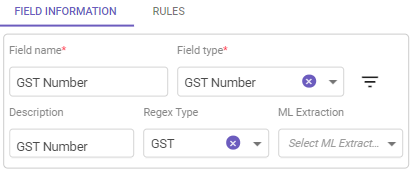
Field Type selected as GST Number
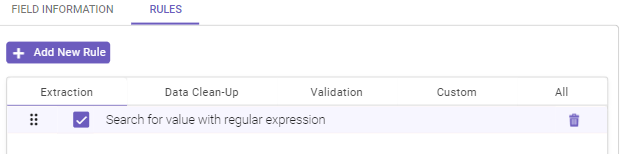
Automatically selected extraction rule
To prevent an extraction rule from getting applied, user can clear the checkbox next to the required extraction rule under the Extraction tab. All the selected extraction rules are displayed under the All tab.)
Below is the list of the available extraction rules with their explanation.
Description: The purpose of "Assign Value" rule is to assign a specified string value to a chosen field. By configuring this rule, you can automate the process of populating fields with consistent and predefined content, streamlining the data extraction procedure.
Rule details
Ontology screen name: Assign value
Programmatic name: AssignValue
|
PARAMETER NAME |
PARAMETER TYPE |
PARAMETER DESCRIPTION |
|---|---|---|
|
Value |
String |
Value to be assigned. |
Example
Based on the given parameter values, the value referred by the @InvoiceNumber reference field will get assigned to the required field.
|
PARAMETER NAME |
PARAMETER VALUE |
|---|---|
|
Value |
@InvoiceNumber |
Note:
Reference values (prefixed by @ or @@) as well as static values (like 34, 56.90, etc.) can be passed as values to the Value parameter.
Description: The primary objective of "Convert Amount in Words to Number" rule is to convert a monetary amount that is represented in textual form (words) into its corresponding numerical representation. By utilizing this rule, the process of comparing amounts expressed in different formats can be automated, enhancing the accuracy and speed of data analysis.
Rule details
Ontology screen name: Convert the amount in words to its equivalent number
Programmatic name: ConvertNumberWordToNumber
Example
In a given P.O., the cost mentioned in words is to be compared against the cost mentioned in numbers. Using This rule, the extracted cost in words can be converted to its equivalent number, that can be furthered compared with the amount mentioned in figures in the given P.O.
Note:
-
This rule is commonly used to provide an input for subsequent rules within the ontology.
-
The "Convert Amount in Words to Number" rule serves as a bridge between textual and numerical data representations, facilitating seamless data analysis and validation.
Description: The primary function of the "Evaluate Expression" rule is to perform calculations or evaluations based on provided expressions and subsequently assign the computed value to a designated field. This rule allows users to create sophisticated logic to derive new values from existing data within the ontology.
Rule details
Ontology screen name: Evaluate the expression
Programmatic name: ExtractFieldByExpression
|
PARAMETER NAME |
PARAMETER TYPE |
PARAMETER DESCRIPTION |
|---|---|---|
|
Expression |
String |
Expression to be evaluated. Note From the Field Parameter drop-down list, select the required expression to be evaluated and click on the |
 icon to add the expression to be evaluated.
Example
In a given invoice, the final price of a specified item is to be verified. This can be done by extracting the required values from the invoice and then using the given expression to calculate the total price.
|
PARAMETER NAME |
PARAMETER VALUE |
|---|---|
|
Expression |
@Qty*@Price(1+@GST/100) |
In the expression given above, @Qty, @Price and @GST are the referenced fields that have already been extracted from the invoice document.
Note:
-
The "Evaluate Expression" rule offers a powerful way to perform dynamic calculations and logic within the ontology.
-
Expressions can be as simple or complex as needed, allowing for various mathematical and logical operations.
-
Referenced fields within the expression must have been previously extracted and are available for use in the calculation.
Description: The primary purpose of the "Extract Table Field using Line Number" rule is to selectively extract data from a specified column within a document table. This extraction process is controlled by parameters such as table name, column name, line number, direction, and handling of blank lines.
Rule details
Ontology screen name: Get the value in a table with table name from a column with column name at line number in particular direction and ignore/allow blank lines
Programmatic name: ExtractTableColumnValuesBasedOnLineNo
|
PARAMETER NAME |
PARAMETER TYPE |
PARAMETER DESCRIPTION |
|---|---|---|
|
Table Name |
String |
Name of the datatable from which the values are to be fetched. |
|
Column Name |
Reference |
A reference field representing the column name from which the value is to be extracted. |
|
Number |
Numeric |
Indicates the vertical search span in terms of number of lines from the anchor field line. For example, if the line distance is '1', the anchor text line and the line above or below it (based on Direction parameter) will be searched. Note A zero value indicates that all lines in a given direction (either top or bottom) will be included in the vertical search span. |
|
Particular |
Selection List |
Position of the value that is to be extracted. Available options are: Bottom and Top. |
|
Ignore/Allow |
Selection List |
Indicates blank line present in the value that is to be extracted of the table. Available options are: Allow and Ignore. |
Example
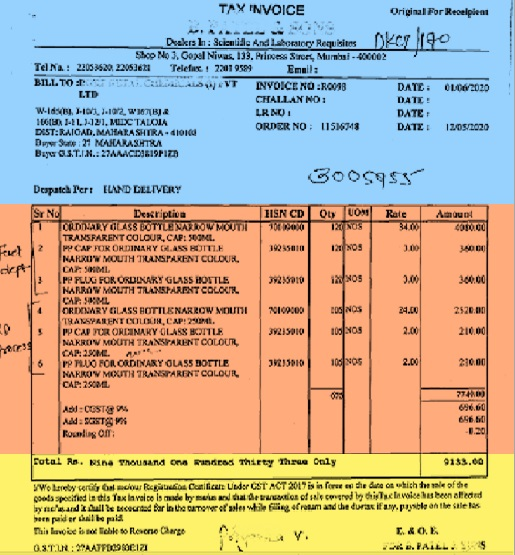
Consider that you want to fetch the HS # value that is appearing under the Description of Goods column (as shown below).
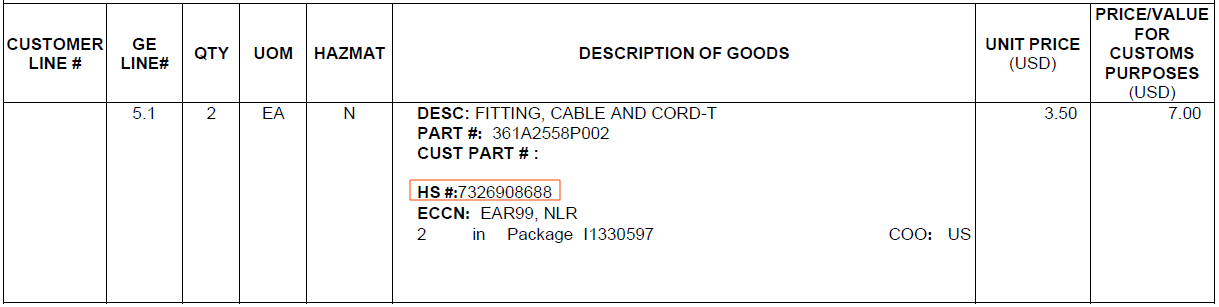
You can set the parameter values as shown below to fetch the required data.
|
PARAMETER NAME |
PARAMETER VALUE |
|---|---|
|
Table Name |
@Table1 |
|
Column Name |
@Description |
|
Number |
4 |
|
Particular |
Top |
|
Ignore/Allow |
Ignore |
Here, @Description refers to the description data present in the document table.
Note:
-
The "Extract Table Column Values Based on Line Number" rule streamlines the extraction of specific data from structured tables.
-
Parameters such as column name, line number, and handling of blank lines allow for precise data extraction.
-
The rule is useful when you need to extract specific values from tables in a structured document.
Description: The primary objective of the "Extract First or Last Printed Line" rule is to extract data from a document table using an anchor field as a reference point. The rule facilitates the extraction of values from a specified position within the table, considering conditions related to the vertical edge.
Rule details
Ontology screen name: Extract anchor value from all pages for first/last Vertical Edge printed line
Programmatic name: GetAnchorFieldValue
|
PARAMETER NAME |
PARAMETER TYPE |
PARAMETER DESCRIPTION |
|---|---|---|
|
Vertical Edge |
Reference |
Position of the value that is to be extracted. Available options are: First Printed Line and Last Printed Line. |
Example
Consider that you want to fetch the HS # value that is appearing under the Description of Goods column (as shown below).
You can set the parameter values as shown below to fetch the required data.
|
PARAMETER NAME |
PARAMETER VALUE |
|---|---|
|
Vertical Edge |
Last Printed Line |
Note:
-
The "Extract Anchor Value from All Pages" rule streamlines the extraction of data across multiple pages of a document table.
-
The use of an anchor field as a reference point enhances the precision of data extraction.
-
This rule is valuable when you need to collect specific values from a structured table spanning multiple document pages.
Description: The primary function of the "Filter Result by Value Index" rule is to extract the label associated with a particular checkbox within a checkbox group. The rule allows you to determine which checkbox label to extract by specifying its numeric index position within the checkbox group. Additionally, you can choose to sort the results in a specific direction.
Rule details
Ontology screen name: Filter with value index using the value and by sorting in direction
Programmatic name: FilterByValueIndex
Note
Use Get the Checkbox Value rule before Filter by Value Index rule to extract all the labels in the required checkbox group. This data will then be used by Filter by Value Index rule to extract the required label.
|
PARAMETER NAME |
PARAMETER TYPE |
PARAMETER DESCRIPTION |
|---|---|---|
|
The Value |
Numeric |
Index position of the required checkbox against which data is to be fetched. |
|
Direction |
String |
Indicates the order of direction in which the values will be filtered. Available options are: Ascending, Descending, and None. |
Example
Consider that you want to find the tourist destination selected by a client in an itinerary form (as shown below).
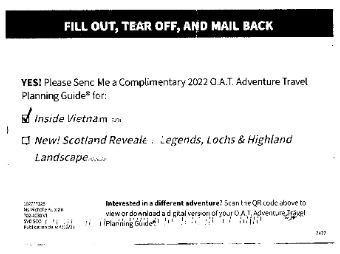
You can set the parameter values as shown below to fetch the required data.
|
PARAMETER NAME |
PARAMETER VALUE |
|---|---|
|
The Value |
1 |
|
Direction |
Ascending |
Note:
-
The "Filter by Value Index" rule simplifies the process of extracting specific checkbox labels from a checkbox group.
-
When used in conjunction with the "Get the Checkbox Value" rule, you can accurately extract and analyze checkbox-related data.
-
This rule enhances efficiency when working with forms and documents that feature checkbox groups and associated labels.
Description: The primary purpose of the "Generate Sequence Number for Table" rule is to assign a sequential number to each row extracted from a document table. This sequential numbering serves as an index or identifier for the individual rows within the table. It helps maintain the order and distinction of the extracted data, making it easier to reference and analyze.
Rule details
Ontology screen name: Assign a sequence
Programmatic name: GenerateSequenceNumberForTable
Example
In a given invoice document, the serial numbers for table records is missing from the invoice table. After data is extracted from the table, This rule can be used to sequentially number the extracted records.
Note:
-
The "Generate Sequence Number for Table" rule streamlines the process of assigning sequential numbers to table rows.
-
This rule enhances data organization and facilitates analysis by providing a clear index for each extracted record.
-
Sequential numbering helps maintain the integrity of the data and ensures accurate referencing of individual rows within the table.
Description: The "Get Words from the Line" extraction rule focuses on extracting multiple lines of text based on the position of an anchor text or reference field within the document. This rule is especially useful when you want to capture a contextual snippet of information that extends over several lines from a given starting point.
Rule details
Ontology screen name: Get all lines after anchor text as specific text value up to line number towards specific direction
Programmatic name: ExtractWordsFromLineUptoAnchor
|
PARAMETER NAME |
PARAMETER TYPE |
PARAMETER DESCRIPTION |
|---|---|---|
|
Anchor Text |
String/Reference |
A reference field that is to be used as a point of reference for the line and word distance. |
|
Line Number |
Numeric |
Indicates the vertical search span in terms of number of lines from the anchor field line. For example, if the line distance is '1', the anchor text line and the line above or below it (based on Direction parameter) will be searched. Note A zero value indicates that all lines in a given direction (either top or bottom) will be included in the vertical search span. |
|
Direction |
Selection list |
Indicates whether the vertical search span is upwards or downwards in reference to the anchor field. Available values are Bottom and Top. |
Example
Consider that in a given invoice, all the lines below the invoice date is to be extracted. It is known that the invoice date will appear somewhere towards the right direction with respect to the invoice number. (See illustration below.)

You can set the parameters values as shown below to fetch the required data.
|
PARAMETER NAME |
PARAMETER VALUE |
|---|---|
|
Anchor Text |
@InvoiceNumber |
|
Line Number |
3 |
|
Direction |
Bottom |
Note:
-
The "Get All Lines" rule is valuable for capturing contextual information in a structured manner.
-
This rule is particularly useful when you need to extract multi-line sections of text based on a reference point.
-
The ability to specify the line number and direction allows for precise extraction of relevant content.
Description: The "Get Amount in Words" extraction rule focuses on identifying and extracting a group of words that represent a monetary amount in written form. This rule is designed to capture the textual description of an amount, often used for presentation purposes, and convert it into its corresponding numeric value.
Rule details
Ontology screen name: Get the amount in words
Programmatic name: GetAmountInWord
Example
In a given invoice document, the invoice amount is mentioned as Five Hundred Fifty Only. The rule will find and extract the specified words and convert them to its numerice equivalent, i.e., 550.
Note:
-
The "Get Amount in Words" rule is valuable for extracting and converting written monetary amounts into numerical values.
-
This rule is commonly used in financial and accounting contexts to ensure accurate calculations and data consistency.
-
Post-extraction processing may be required to convert the extracted words into their corresponding numeric values.
Description: The "Get the Pattern and ML based Choice Selection based on the Anchor Text" extraction rule will identify checkboxes within the designated search zone on the page and apply the specified choice pattern to select or deselect the appropriate checkboxes. The chosen options will be extracted as per the criteria defined.
Rule details
Ontology screen name: Get the choice selection based on the anchor text value from line number above and line number below with the choice pattern value and with search zone data
Programmatic name: GetChoiceFieldValuePatternMLBased
|
PARAMETER NAME |
PARAMETER TYPE |
PARAMETER DESCRIPTION |
|---|---|---|
|
Value |
Reference |
A reference field that is to be used as a point of reference for the line. |
|
Line Above |
Numeric |
Indicates the vertical search span in terms of number of lines from the anchor field line. For example, if the line distance is '1', the anchor text line and the line above it will be searched. Note A zero value indicates that all lines in a given direction (either top or bottom) will be included in the vertical search span. |
|
Line Below |
Numeric |
Indicates the vertical search span in terms of number of lines from the anchor field line. For example, if the line distance is '1', the anchor text line and the line below it will be searched. Note A zero value indicates that all lines in a given direction (either top or bottom) will be included in the vertical search span. |
|
Pattern Value |
String |
Indicates the choice pattern that is to be used to extract the data. Note
|
|
Search Zone |
Reference |
It indicates the region within which the check boxes are available on the specified page. |
Example
Consider that in a given document you want to fetch the institution name along with the record status (as shown below).
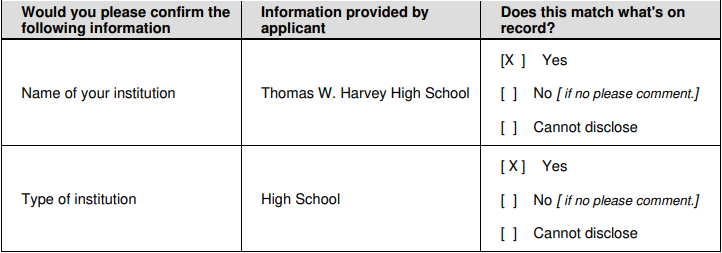
You can set the parameter values as shown below to fetch the required data.
|
PARAMETER NAME |
PARAMETER VALUE |
|---|---|
|
Value |
Name of your institution |
|
Line Above |
1 |
|
Line Below |
1 |
|
Pattern Value |
[ x ],[X ],[ X], [ X ] |
|
Search Zone |
Yes |
Note:
-
This rule is specifically designed for extracting data from choice fields represented by checkboxes within tables in unstructured or semi-structured documents.
-
It streamlines the selection or deselection of choice field labels based on defined conditions.
-
Choice fields should be added as header fields and not under the Details/Tables section of the document.
-
The rule introduces the concept of a "search zone" to narrow down the scope of checkbox extraction, which is particularly useful in unstructured or semi-structured documents.
Description: The "Get Currency Value" extraction rule is used to automatically extract currency codes from documents that contain monetary values. This rule is beneficial when dealing with documents that include currency codes in conjunction with numerical amounts.
Rule details
Ontology screen name: Get the currency value
Programmatic name: GetCurrency
Example
In a given price quotation document, the final bid value is available as USD 5,000,000. Using This rule, the currency code (USD) can be extracted.
Note:
-
The "Get Currency Value" extraction rule is particularly useful when dealing with documents that contain monetary values along with currency codes.
-
It allows you to automatically extract currency codes for further processing, eliminating the need for manual data entry.
-
The rule is especially valuable in scenarios where large amounts of financial data need to be processed accurately and efficiently.
-
The rule can be applied to structured and unstructured documents alike, enhancing data extraction capabilities across various document formats.
Description: The "Get Lookup Table Field" extraction rule is designed to extract values under a specified column within a document table. It works by determining the position and number of words to extract from the cell of interest. The rule is particularly useful when dealing with tables that may contain overlapping values or require precise extraction conditions.
Rule details
Ontology screen name: Extract the word count at word count value at a word position value using a dependent field name by matching the synonym values
Programmatic name: GetOverlappingPrevSubFieldValue
|
PARAMETER NAME |
PARAMETER TYPE |
PARAMETER DESCRIPTION |
|---|---|---|
|
Word Count Value |
Numeric |
Indicates the number of words that are to be extracted from the column cell for the current row. Note Permitted value range is 0-9999, where 0 indicates that all words are to be extracted. |
|
Value |
String |
Indicating the position from which the words are to be extracted. Available options are: End and Start. |
|
Name |
Reference |
A reference field representing the column name from which the value is to be extracted. |
|
Values |
String |
Keywords for column name from which the value is to be extracted. For example, Item No, SI No, # etc. are synonyms for Index. |
Example
Consider the receipt below in which the value for Caj/Bot column is appearing partially under the Description column.
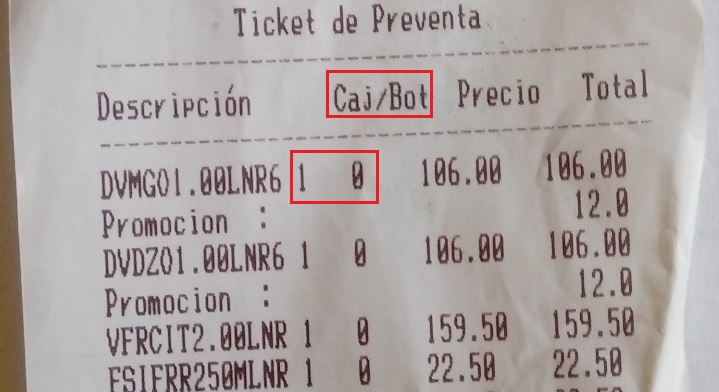
Using This rule, the Caj/Bot value that is appearing under the Description column can be fetched by setting the parameter values as shown below.
|
PARAMETER NAME |
PARAMETER VALUE |
|---|---|
|
Word Count Value |
1 |
|
Value |
End |
|
Name |
@Description |
|
Values |
Descripciòn, Details |
Here, @Description refers to the description data present in the document table.
Note:
-
The "Get Lookup Table Field" extraction rule is particularly useful when dealing with tables containing overlapping values or specific extraction conditions.
-
It enables accurate extraction of data from tables, even when values are partially visible or overlap with other cells.
-
The rule's parameters allow you to fine-tune the extraction process by specifying word count, position, and synonyms to match the column names.
-
The rule contributes to data accuracy and efficiency in structured document processing.
Description: The "Get the Maximum Date" extraction rule is designed to extract the latest date value from a given document. It identifies and selects the date that is the most recent among the available date values, regardless of their position within the document.
Rule details
Ontology screen name: Get the latest date value
Programmatic name: GetMaximumDate
Example
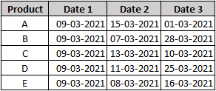
Consider that the following document contains a set of three available dates for a set of products. Using this rule, the minimum date (28-03-2021) can be extracted.
Note:
-
The "Get the Maximum Date" extraction rule is particularly useful when dealing with documents containing multiple date values and you need to identify the most recent date.
-
The rule streamlines the process of selecting the latest date value without requiring explicit instructions for date comparison.
-
It contributes to data accuracy and efficiency in cases where the most recent date value is crucial.
Description: The "Get the Minimum Date" extraction rule is designed to extract the earliest date value from a given document. It identifies and selects the date that is the earliest among the available date values, regardless of their position within the document.
Rule details
Ontology screen name: Get the earliest date value
Programmatic name: GetMinimumDate
Example
Consider that the following document contains a set of three available dates for a set of products. Using this rule, the minimum date (01-03-2021) can be extracted.
Note:
-
The "Get the Minimum Date" extraction rule is particularly useful when dealing with documents containing multiple date values, and you need to identify the earliest date.
-
The rule streamlines the process of selecting the earliest date value without requiring explicit instructions for date comparison.
-
It contributes to data accuracy and efficiency in cases where the earliest date value is crucial.
Description: The "Get Multi Line Text" extraction rule is designed to capture and extract a multi-line text segment from a document. It identifies a starting line and an ending line, and then extracts the text content that falls between these lines, inclusive of the start and end lines.
Rule details
Ontology screen name: Get words between the line starting at a start line and a line ending on the end line on page number at position value
Programmatic name: GetWordsBetweenLines
|
PARAMETER NAME |
PARAMETER TYPE |
PARAMETER DESCRIPTION |
|---|---|---|
|
A Start Line |
Numeric |
Number indicating the starting line of the multi-line text in a given document . Value starts from 1. |
|
The End Line |
Numeric |
Number indicating the end line of the multi-line text in a given document. |
|
Number |
Numeric |
Number of the page from which the multi-line text is to be extracted. Permitted page number range is 0 to 9999, where 0 indicates the first page. |
|
Value |
String |
Indicates whether the multi-lines run downwards or upwards from the start line. Based on this the values can be set to either Bottom (downwards) or Top (upwards). |
Example
In a given bank account form, the address of the applicant is available on the second page, starting from fifth line and ending on the seventh line. To extract the address, we can set the parameter values as given below.
|
PARAMETER NAME |
PARAMETER TYPE |
|---|---|
|
A Start Line |
5 |
|
The End Line |
7 |
|
Number |
2 |
|
Value |
Top |
Note:
-
The "Get Multi Line Text" extraction rule is particularly useful when you need to extract a portion of text that spans multiple lines within a document.
-
The rule provides a systematic way to extract specific content based on line numbers and page numbers, reducing the need for manual searching and selection.
-
It is especially valuable for extracting structured information from forms and documents that are organized in a consistent manner.
Description: The "Get Multiple Words" extraction rule is employed to capture and extract a contiguous set of words that extend across multiple lines within a document. It is especially valuable when dealing with text content that is distributed over several lines and forms a meaningful unit, such as a description, a phrase, or a sentence.
Rule details
Ontology screen name: Get multiple words
Programmatic name: GetMultiWordColumnar
Example
In a given document, the item description is spread across three lines under the description header. Using This rule, the complete description can be fetched.
Note:
-
The minimum and maximum length properties for the required field (for which Get Multiple Words is being used) should be set.
-
The rule expects the data for a given synonym to be lying either towards the right of the synonym or below it.
-
The "Get Multiple Words" extraction rule is particularly useful when you need to extract textual content that is not confined to a single line but rather extends across multiple lines.
-
This rule is commonly used for capturing descriptions, phrases, sentences, or any other textual content that forms a continuous unit but might be divided across lines in the document.
-
By setting the minimum and maximum length properties, you can define the scope of the text to be captured, ensuring accurate extraction of the desired content.
Description: The "Get Numeric Values Based on Keyword" extraction rule is employed to extract a numeric value from a document by utilizing a keyword's order sequence as a reference point. This rule is useful when you need to capture a numeric value that corresponds to a keyword and is located in a specific order within the document.
Rule details
Ontology screen name: Get the numeric values based on a keyword at an index value by the specified order sequence
Programmatic name: GetNumericValuesBySynonym
|
PARAMETER NAME |
PARAMETER TYPE |
PARAMETER DESCRIPTION |
|---|---|---|
|
Value |
Numeric |
Index position of the data field. Permitted value-range is 0 to 9999, where 0 represents the first data field. |
|
Order |
String |
Indicates the position from which the value is to be extracted. Available options are Highest and Lowest. |
Example
Consider that you want to fetch the invoice number (as shown below).
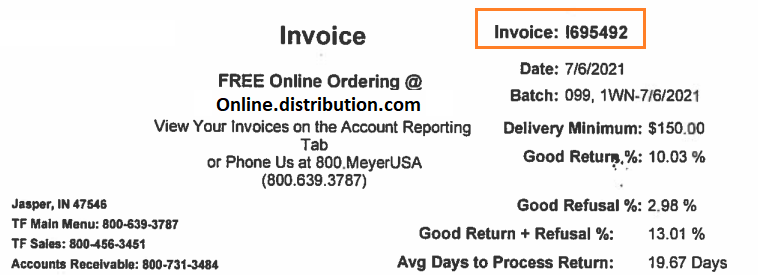
You can set the parameter values as shown below to fetch the required data.
|
PARAMETER NAME |
PARAMETER VALUE |
|---|---|
|
Value |
1 |
|
Order |
Highest |
Note:
-
The "Get Numeric Values Based on Keyword" extraction rule is particularly useful when you need to extract numeric data that is accompanied by specific keywords within a document.
-
This rule helps you capture the numeric value associated with a keyword while taking into account its order sequence relative to other values.
-
By selecting the appropriate order sequence (highest or lowest), you can accurately capture the desired numeric value from the document.
-
This rule is commonly used in scenarios where data with varying keywords needs to be organized and processed based on their corresponding numeric values.
Description: The "Get Numeric Values" extraction rule enables you to extract numeric values in a specified format from a document. This rule is especially useful when you want to capture numeric information, including both whole numbers and decimals, from text content.
Rule details
Ontology screen name: Get the numeric values up to a decimal place value using a decimal separator and keep the value at state and for integer, perform
Programmatic name: GetAllNumericValues
|
PARAMETER NAME |
PARAMETER TYPE |
PARAMETER DESCRIPTION |
|---|---|---|
|
Value |
Numeric |
Number of digits to the right of the decimal that are to be extracted along with the whole number. Available values are 0, 1, 2, and 4. |
|
Separator |
String |
Indicates the decimal separator. Period (.) and comma (,) can be given as decimal separators. Note More than one decimal separator can be given. |
|
At State |
Selection list |
Option to indicate whether to extract a positive or negative value. Available options are OFF or ON, where OFF indicates user's preference to extract a negative value and ON indicates user's preference to extract only a positive value. Note In case a negative value is to be extracted, only the value will get extracted and the minus sign will get ignored. |
|
Numeric |
Indicates the option to include or exclude a value based on whether it is a decimal value. Available options are Exclude Integer or Include Integer. |
Example
In a given receipt, the discount offered to the customer is displayed as -450,75. Based on the below parameter set, the extracted value will be 450.
|
PARAMETER NAME |
PARAMETER TYPE |
|---|---|
|
Value |
0 |
|
Separator |
, |
|
At State |
OFF |
|
Perform |
Exclude Integer |
Note:
-
The "Get Numeric Values" extraction rule is versatile and useful when you need to extract numeric values in various formats from a document.
-
This rule can handle both whole numbers and decimal values, accommodating different numeric representations.
-
By specifying the parameters correctly, you can ensure accurate extraction of numeric values, regardless of their format.
-
The rule's flexibility allows you to customize extraction based on the desired decimal places, separator, and inclusion/exclusion of integer values.
-
This rule can be applied to scenarios where extracting numeric data is essential, such as financial documents, invoices, receipts, and more.
Description: The "Get the Overlapping Value" extraction rule allows you to extract word(s) located on a specified line based on the position of a reference word. This rule is useful when you want to capture words that overlap with or are adjacent to a specific reference word in a document.
Rule details
Ontology screen name: Get overlapping values up to line number towards specific direction
Programmatic name: GetOverlapValue
|
PARAMETER NAME |
PARAMETER TYPE |
PARAMETER DESCRIPTION |
|---|---|---|
|
Number |
Numeric |
Indicates the vertical search span in terms of number of lines from the anchor field line. For example, if the line distance is '1', the anchor text line and the line above or below it (based on Direction parameter) will be searched. Note A zero value indicates that all lines in a given direction (either top or bottom) will be included in the vertical search span. |
|
Specific Direction |
Selection list |
Indicates whether the vertical search span is upwards or downwards in reference to the anchor field. Available values are Bottom and Top. |
Example
Consider that in a given invoice, the invoice date is to be extracted which is overlapping with due date field. It is known that the invoice date will appear somewhere towards the right direction with respect to the invoice number. Also, it can either be on the same line or towards the bottom with respect to the invoice number. (See illustration below.)

You can set the parameters values as shown below to fetch the required data.
|
PARAMETER NAME |
PARAMETER VALUE |
|---|---|
|
Number |
2 |
|
Specific Direction |
Bottom |
Note:
-
The "Get the Overlapping Value" extraction rule is useful when you need to extract words that are positioned adjacent to or overlapping with a reference word.
-
By specifying the parameters correctly, you can ensure that the rule captures the desired word(s) based on the position of the reference word.
-
This rule is versatile and can be applied to scenarios where capturing specific words related to a reference word is crucial.
-
The rule's flexibility allows you to customize the search direction and span to accurately extract overlapping values.
-
This rule can be particularly helpful in situations where the positioning of certain words in relation to reference words is important for data extraction.
Description: The "Get Single Word" extraction rule allows you to extract a single word from a document based on its position in relation to synonyms associated with a given field. This rule is useful when you want to capture a specific word that corresponds to a particular field value and its associated synonyms.
Rule details
Ontology screen name: Get a single word from specific direction and for integer perform action
Programmatic name: GetSingleWordValueOnDirection
|
PARAMETER NAME |
PARAMETER TYPE |
PARAMETER DESCRIPTION |
|---|---|---|
|
Specific |
Selection List |
Position in respect to the position of the synonym found in the document. Available options are right, left, top, bottom, rightbottom, and righttop. |
|
Action |
Boolean |
Option to indicate whether to extract a suspected data even when its position does not exactly matches with that specified in the Direction parameter. Available options are Allow and Deny. |
Example
An invoice number is to be extracted from the below invoice.
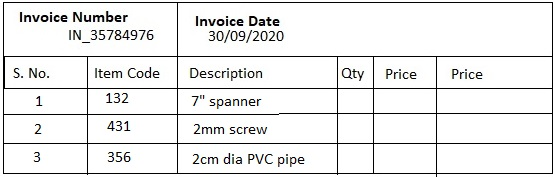
To extract the invoice number, the parameters can be set as shown below.
|
PARAMETER NAME |
PARAMETER VALUE |
|---|---|
|
Specific |
bottom |
|
Action |
Allow |
As the invoice number is slightly displaced towards left from its expected position, the invoice number cannot be considered to lying exactly below the invoice number field. (See Direction chart .) Hence the Overlap Allowed is to be set to Allow.
Note:
-
In the above scenario, the parameter values {rightbottom,Allow} would also work fine.
-
Get Single Word rule uses synonyms to find the required data.
-
It may happen that multiple data suspects are extracted in regard to the synonyms associated with the required field. In this case, you will may have to validate the extracted values to find the required one.
-
The "Get Single Word" extraction rule is useful when you need to extract a single word based on its position in relation to synonyms.
-
By specifying the parameters correctly, you can ensure that the rule captures the desired word based on its position and associated synonyms.
-
This rule is versatile and can be applied to scenarios where extracting a specific word from a particular position is necessary.
-
The rule's flexibility allows you to customize the direction and specify whether to allow extraction when the position doesn't exactly match.
-
This rule can be particularly helpful in situations where word positioning in relation to synonyms is important for data extraction.
Description: The "Extract Table Field using Other Table Field" extraction rule enables you to extract values from a specific column within a document table. This rule is useful when you want to capture data from structured tables using column references and apply conditions to determine which values to extract.
Rule details
Ontology screen name: Get the reference value from table name in reference column with column name and ignore value
Programmatic name: GetTableColumnValues
|
PARAMETER NAME |
PARAMETER TYPE |
PARAMETER DESCRIPTION |
|---|---|---|
|
Name |
String |
Name of the datatable from which the values are to be fetched. |
|
With Column Name |
Reference |
A reference field representing the column name from which the value is to be extracted. |
|
Values |
String |
Indicates the position of the data to be ignored in respect to the value that is to be extracted. |
Example
Consider that you want to fetch the HS # value that is appearing under the Description of Goods column (as shown below).
You can set the parameter values as shown below to fetch the required data.
|
PARAMETER NAME |
PARAMETER VALUE |
|---|---|
|
Name |
@Table1 |
|
With Column Name |
@Description |
|
Values |
Before |
Here, @Description refers to the description data present in the document table.
Note:
-
The "Extract Table Field using Other Table Field" extraction rule is useful for extracting structured data from document tables.
-
By providing the correct table name, column reference, and optional parameters (such as "Values"), you can ensure accurate data extraction.
-
This rule is suitable for scenarios where data is organized in tables and you need to extract specific information from designated columns.
-
The rule's flexibility allows you to extract data based on column references and apply conditions to specify which data to ignore or extract.
-
Proper parameter setup ensures that you capture the desired values from the specified table and column while accounting for any specified conditions.
-
Using this rule, you can automate the process of extracting data from structured tables, saving time and ensuring accuracy in data extraction.
Description: The "Get Checkbox Value" extraction rule allows you to extract the labels associated with checkboxes found within a specified region of a document. This rule is essential for extracting information from checkboxes that have been selected by users.
Rule details
Ontology screen name: Get the checkbox value in search zone value from index value
Programmatic name: GetCheckboxValue
Note
To extract a specified checkbox label, use the Filter by Value Index rule after the Get the Checkbox Value rule.
|
PARAMETER NAME |
PARAMETER TYPE |
PARAMETER DESCRIPTION |
|---|---|---|
|
Search Zone |
Reference |
It indicates the region within which the check boxes are available on the specified page. |
|
Value |
Numeric |
Indicates the document page where the required checkboxes are available. |
Example
Consider that you want to find the tourist destinations selected by a client in an itinerary form. Assume that the selected options (as shown below) are present on the third page of the form.
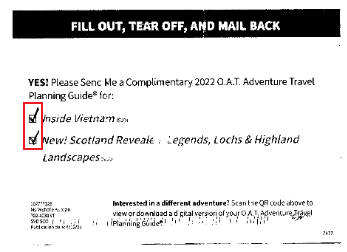
You can set the parameter values as shown below to fetch the required data.
|
PARAMETER NAME |
PARAMETER VALUE |
|---|---|
|
Search Zone |
@CheckboxArea, where CheckboxArea is the ontology field that stores the ROI coordinates of the region within which the checkboxes are present. (Refer image). |
|
Value |
3 |
Note:
-
The "Get Checkbox Value" extraction rule is designed to extract information from checkbox selections within a document.
-
It is particularly useful for scenarios where users have marked checkboxes to indicate their choices.
-
Properly defining the search zone using the "Search Zone" parameter ensures that the rule targets the correct area of the document.
-
By specifying the page number where the checkboxes are located, you can accurately extract the checkbox labels from the desired page.
-
After using the "Get Checkbox Value" rule to extract the checkbox labels, you can further process or filter the extracted labels using additional rules if needed.
-
This rule is valuable for automating the extraction of checkbox-based data from documents, saving time and ensuring accurate data capture.
Description: The "Get List of Values" extraction rule enables you to retrieve multiple values from a specified column in a datatable. This rule is used to gather a collection of related data items for further processing or analysis.
Rule details
Ontology screen name: Get the list of values using the column name from data table value
Programmatic name: getListFromMaster
Note:
The List checkbox (under the Properties tab) for the given field should be selected.
|
PARAMETER NAME |
PARAMETER TYPE |
PARAMETER DESCRIPTION |
|---|---|---|
|
Name |
String |
Name of the datatable column from which the values are to be fetched. If the datatable column refers to a static list, then the Column Name value should be set to StaticValue. In case the list is dynamic, i.e., if a query is being used to populate the datatable, then the column name used in the query should be used as a value. For example, consider the query below. select InvoiceNo, InvoiceDate from InvoiceMaster where vendorNum = @VendorId The query will fetch a list of invoice numbers related to the invoices generated by a given vendor. In this case, the Column Name value should be set to InvoiceNo. |
|
Value |
String |
A reference field referring to the datatable from which the required list is to be fetched. |
Example
Consider that you want to fetch a list of invoice numbers related to the invoices generated by a given vendor. Suppose the list of invoices are available in your database, say in InvoiceMaster datatable. You run an SQL query to fetch the required data in InvoiceDetails datatable.
select InvoiceNo, InvoiceDate from InvoiceMaster where vendorNum = @VendorId
You can use the rule to fetch the list of invoice numbers by setting the parameter values as below.
|
PARAMETER NAME |
PARAMETER VALUE |
|---|---|
|
Name |
InvoiceNo |
|
Value |
@VendorInvoiceDetails |
@VendorInvoiceDetails should be set to the InvoiceDetails datatable.
Note:
-
The "Get List of Values" extraction rule is used to gather a collection of data items from a specified column within a datatable.
-
This rule is particularly valuable when you need to extract a list of related values for further processing or analysis.
-
Ensure that the "List" checkbox is selected under the Properties tab for the column you want to extract values from.
-
The parameter "Name" should be set to the name of the column you are extracting values from. If the list is dynamic, use the column name from the query.
-
The parameter "Value" should be a reference to the datatable containing the list of values you want to extract.
-
The "Get List of Values" rule is commonly used in scenarios involving data collection, data analysis, and data manipulation.
-
Extracting lists of related values from datatables is essential for streamlining processes that involve working with collections of data items.
Description: The "Get Passport Values from Field with Type MRZ Data" extraction rule allows you to extract specific information from the Machine Readable Zone (MRZ) of a passport document. This rule is particularly useful when you need to capture and utilize data stored in the MRZ for various purposes, such as verification, data entry, or identity confirmation.
Rule details
Ontology screen name: Get the value of passport field from MRZ field
Programmatic name: GetPassportData
|
PARAMETER NAME |
PARAMETER TYPE |
PARAMETER DESCRIPTION |
|---|---|---|
|
Passport Field |
Selection List |
Type of information which is to be extracted. Select the required options from the drop-down list.  Available options
|
|
Field |
String |
A reference field referring to the MRZ data from where the data is to be fetched. |
Example
In a given passport document, suppose you want to extract the Date of Birth present in the MRZ data (highlighted in red in below image). You can set the parameter values as shown below to fetch the required data.
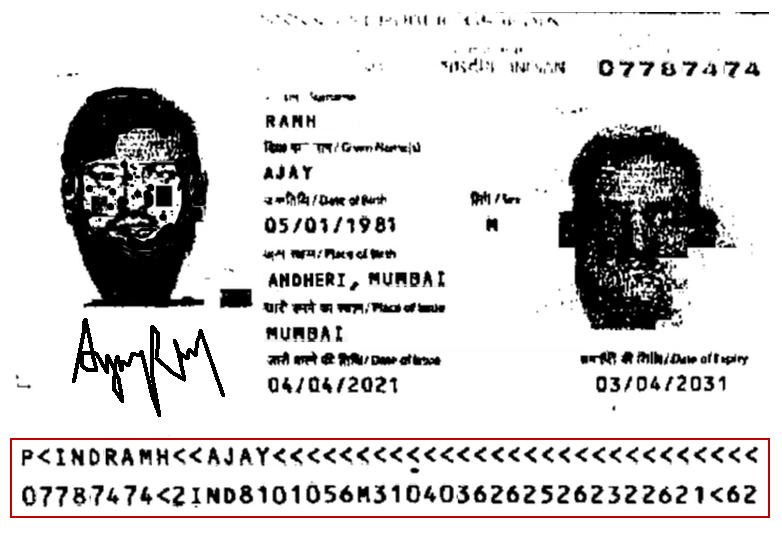
|
PARAMETER NAME |
PARAMETER VALUE |
|---|---|
|
Passport Field |
Date of Birth |
|
Field |
@PassportData |
Note:
-
The "Get Passport Values from Field with Type MRZ Data" extraction rule is used to extract specific information from the Machine Readable Zone (MRZ) of a passport document.
-
The MRZ contains essential personal data of the passport holder, and this rule allows you to extract specific pieces of information for various purposes.
-
The "Passport Field" parameter determines the type of data you want to extract, such as "Date of Birth," "Passport Number," and more.
-
The "Field" parameter should be a reference to the MRZ field from which you want to extract the data.
-
This rule is particularly valuable in scenarios where you need to quickly capture and utilize specific data points from passport documents.
-
Extracting data from the MRZ helps streamline identity verification, data entry, and other processes that involve utilizing passport information.
Description: The "Get Passport Values from Line" extraction rule allows you to extract specific information from the Machine Readable Zone (MRZ) of a passport document. The MRZ contains crucial personal data that is essential for various purposes, including identification and verification.
Rule details
Ontology screen name: Get the value of passport field from passport
Programmatic name: GetPassportValueByField
|
PARAMETER NAME |
PARAMETER TYPE |
PARAMETER DESCRIPTION |
|---|---|---|
|
Passport Field |
Selection List |
Type of information which is to be extracted. Select the required options from the drop-down list. Available options
|
Example
In a given passport document, suppose you want to extract the Country Name present in the MRZ data (highlighted in red in below image). You can set the parameter values as shown below to fetch the required data.
|
PARAMETER NAME |
PARAMETER VALUE |
|---|---|
|
Passport Field |
Country Name |
Note:
-
The "Get Passport Values from Line" extraction rule is used to extract specific information from the Machine Readable Zone (MRZ) of a passport document.
-
The MRZ contains essential personal data of the passport holder, and this rule allows you to extract specific pieces of information for various purposes.
-
The "Passport Field" parameter determines the type of data you want to extract, such as "Country Name," "Date of Birth," "Passport Number," and more.
-
This rule is particularly valuable in scenarios where you need to quickly capture and utilize specific data points from passport documents.
-
Extracting data from the MRZ helps streamline identity verification, data entry, and other processes that involve utilizing passport information.
Description: The "Extract Email Value from Input Source" extraction rule allows you to extract specific pieces of information from an email. This is particularly useful when you need to automate the process of capturing and utilizing data from emails for various purposes, such as data entry, analysis, and more.
Rule details
Ontology screen name: Get value from the email
Programmatic name: GetEmailData
|
PARAMETER NAME |
PARAMETER TYPE |
PARAMETER DESCRIPTION |
|---|---|---|
|
Value |
Selection List |
Type of information which is to be extracted. Select the required options from the drop-down list. Available options
|
Example
In a given email, suppose you want to extract the Sender Name present. You can set the parameter values as shown below to fetch the required data.
|
PARAMETER NAME |
PARAMETER VALUE |
|---|---|
|
Value |
Sender Name |
Note:
-
The "Extract Email Value from Input Source" extraction rule is used to extract specific information from the content of an email.
-
This rule can be valuable in scenarios where you receive a large volume of emails and need to automatically extract key information for processing.
-
The "Value" parameter determines the type of information you want to extract, such as "Email Body," "Sender Name," "Subject," and more.
-
Extracting data from emails helps streamline various tasks that involve processing email information, such as categorization, analysis, and data entry.
-
By utilizing the "Get value from the Email" extraction rule, you can automate the extraction of relevant data from emails and enhance efficiency in managing email communications and associated tasks.
Description: The "Get Words on Line" extraction rule extracts words from a specified line based on the position of a reference word and the desired direction. This rule is helpful in scenarios where words are positioned relative to a reference word and need to be captured for further processing or analysis.
Rule details
Ontology screen name: Get words on the line at a word position placed at direction value
Programmatic name: GetWordsOnLine
Note:
The extracted word(s) along with the reference word are returned as a single string by the rule.
|
PARAMETER NAME |
PARAMETER TYPE |
PARAMETER DESCRIPTION |
|---|---|---|
|
Word |
String |
Position of the word that is to be extracted in respect to the reference word. Available options are: All, Last, and Neighbour. |
|
Value |
String |
Direction indicating the side from which the word is to be extracted in respect to the reference word. Available options are: Left and Right. |
Example
Consider that in a purchase receipt, the total amount is appearing as two numbers because of a space that has slipped in between the digits. For example, the amount is appearing as 340 10. When the amount is extracted, say using Get Single Word extraction rule, only the first three digits, i.e., 340 is getting fetched.
To fetch the amount correctly, we can use Get Words on Line as the next extraction rule after Get Single Word in the extraction sequence. Based on the property values shown below, the complete amount will get fetched.
|
PARAMETER NAME |
PARAMETER VALUE |
|---|---|
|
Word |
Neighbour |
|
Value |
Right |
Note:
-
The "Get Words on Line" extraction rule is particularly useful when you need to capture words positioned relative to a reference word within a line of text.
-
This rule helps in cases where words are separated by spaces or other characters and need to be accurately captured for further processing.
-
The "Word" parameter allows you to specify whether you want to extract all words, the last word, or neighboring words.
-
The "Value" parameter determines the direction from which the word(s) will be extracted, either to the left or right of the reference word.
-
By utilizing the "Get Words on Line" extraction rule, you can ensure accurate extraction of specific words from lines of text in your documents, helping to improve data accuracy and subsequent analysis.
Description:The "Get Word Count" extraction rule provides the capability to determine the number of occurrences of a specified word on a particular line. This rule can be applied when you want to quantify the frequency of a specific word in a specific context or section of a document.
Rule details
Ontology screen name: Get the word count from the anchor text for the given field name
Programmatic name: GetNumberOfWordsMatchOnLine
|
PARAMETER NAME |
PARAMETER TYPE |
PARAMETER DESCRIPTION |
|---|---|---|
|
Text |
String |
Word whose count is to be found. It must be prefixed with '@'. |
|
Name |
String/Reference |
A reference field referring to the line position where the count for the given word is to be found. |
Example
In a given test report for a product, the test name and test status (PASSED / FAILED) are mentioned on a single line against the Final Status field. Using the rule, the number of tests that have been passed can be found out by setting the parameter values as shown below.
|
PARAMETER NAME |
PARAMETER VALUE |
|---|---|
|
Text |
@PASSED |
|
Name |
@Final Status |
Note:
-
The "Get Word Count" extraction rule is particularly useful when you want to quantify the frequency of a specific word on a particular line in a document.
-
This rule helps in scenarios where you need to track how many times a certain word appears in a specific context or section.
-
The "Text" parameter allows you to specify the word for which you want to calculate the count. The word must be prefixed with "@".
-
The "Name" parameter refers to a reference field or string indicating the position where the count of the specified word is to be found.
-
By utilizing the "Get Word Count" extraction rule, you can accurately determine the number of occurrences of a specific word, aiding in data analysis and decision-making processes.
Description: The "Get Words on the Line" extraction rule enables you to extract one or more words from a predefined line in a document. This extraction is based on the reference provided by a specific word (anchor text) located nearby. By specifying the number of lines to search, the direction of the search, and the specific text (anchor text) to use as reference, you can accurately capture the desired words on the target line.
Rule details
Ontology screen name: Get words on the line number towards specific direction of anchor text with specific text value
Programmatic name: ExtractWordsOnTheLineFromAnchor
|
PARAMETER NAME |
PARAMETER TYPE |
PARAMETER DESCRIPTION |
|---|---|---|
|
Number |
Numeric |
Indicates the vertical search span in terms of number of lines from the anchor field line. For example, if the line distance is '1', the anchor text line and the line above or below it (based on Direction parameter) will be searched. Note A zero value indicates that all lines in a given direction (either top or bottom) will be included in the vertical search span. |
|
Specific |
Selection list |
Indicates whether the vertical search span is upwards or downwards in reference to the anchor field. Available values are Bottom and Top. |
|
Specific Text |
String/Reference |
A reference field that is to be used as a point of reference for the line and word distance. |
Example
Consider that in a given invoice, the invoice date is to be extracted. It is known that the invoice date will appear somewhere towards the right direction with respect to the invoice number. Also, it can either be on the same line or towards the bottom with respect to the invoice number. (See illustration below.)
You can set the parameters values as shown below to fetch the required data.
|
PARAMETER NAME |
PARAMETER VALUE |
|---|---|
|
Number |
3 |
|
Specific |
Bottom |
|
Specific Text |
@InvoiceNumber |
Note:
-
The "Get Words on the Line" extraction rule is valuable when you need to capture specific information located on a certain line in relation to an anchor text.
-
This rule helps in scenarios where the target information is located on a particular line and can be accurately located using a nearby anchor text.
-
Parameters like "Number" and "Specific" help you define the search scope and direction, allowing flexibility in adapting to various document layouts.
-
By utilizing the "Get Words on the Line" extraction rule, you can ensure accurate data extraction even when the target information's exact position may vary across different documents.
Description: The "Get Multi Word Value Columnar" extraction rule allows you to extract all words between two given stop words. The stop words serve as anchor points to define the range within which the words are to be extracted. This rule helps when you need to extract a continuous block of text, such as a description, a paragraph, or any other sequence of words located between two specific words.
Rule details
Ontology screen name: Get all the words upto stop word StopWord at right at right direction and stop word StopWord at bottom and skip Skipline line/s
Programmatic name: GetMultiWordValueColumnar
|
PARAMETER NAME |
PARAMETER TYPE |
PARAMETER DESCRIPTION |
|---|---|---|
|
StopWord at right |
String/Reference |
A reference field that is to be used as a point of reference for the line and word distance. |
|
StopWord at bottom |
String/Reference |
A reference field that is to be used as a point of reference for the line and word distance. |
|
Skipline |
Numeric |
Indicates the vertical search span in terms of number of lines from the anchor field line. For example, if the line distance is '1', the anchor text line and the line above or below it (based on Direction parameter) will be searched. Note A zero value indicates that all lines in a given direction (either top or bottom) will be included in the vertical search span. |
Example
In a given bank account form, the address of the applicant is available on the second page, starting from fifth line and ending on the seventh line. To extract the address, we can set the parameter values as given below.
|
PARAMETER NAME |
PARAMETER TYPE |
|---|---|
|
StopWord at right |
5 |
|
StopWord at bottom |
7 |
|
Skipline |
1 |
Note:
-
The "Get Multi Word Value Columnar" extraction rule is useful when you need to capture a block of text located between two specified points in a document.
-
This rule allows you to define the extraction range using stop words as references, providing precise control over the content you want to capture.
-
By utilizing the "Get Multi Word Value Columnar" extraction rule, you can ensure accurate extraction of continuous text sequences, such as paragraphs, descriptions, or any other content present between specific points in the document.
Description: The "Lookup from DataTable (for Table Fields)" extraction rule is used to find a specific value in a document table and then retrieve a corresponding value from a database column. This rule is particularly useful when you need to derive additional information based on the values present in a document's table section. It's commonly used to fetch related data from a database or datatable to populate a derived field.
Rule details
Ontology screen name: Look up column name from the data table with extracted column and lookup reference column with a minimum match percentage of percentage. Use this rule for a field which is to be set as a Derived field.
Programmatic name: ExtractDerivedTableField
|
PARAMETER NAME |
PARAMETER TYPE |
PARAMETER DESCRIPTION |
|---|---|---|
|
Column Name |
String |
Name of the database column in which the given value is to be looked up. |
|
Data Table |
String/Reference |
A field that refers to the datatable which is to be looked up. |
|
Extracted Column |
String |
A field that refers to the document table column in which the given value (that is to be looked up) is present. Note Column name along with row-index identifies the lookup value cell. (The row index is always set to CurrentRow, which refers to the row that is currently being processed by the application.) |
|
Lookup Reference Column |
String |
Name of the datatable column that identifies the record field from which the value is to be fetched. |
|
Match Percentage |
String |
Indicates lower limit of the match percentage range set for partial match. |
Example 1
Based on an item code mentioned in a price quotation document (refer illustration below), it is to be found that how much inventory for that item is currently available.

This can be done by setting up the parameter values for the lookup rule as shown below.
|
PARAMETER NAME |
PARAMETER VALUE |
|---|---|
|
Column Name |
@ItemCode |
|
Data Table |
@ItemMaster |
|
Extracted Column |
@ItemNumber |
|
Lookup Reference Column |
Stock |
|
Match Percentage |
100 |
Example 2
The value existing in a price quotation document is Wodden hammer (refer illustration below), and the OCR extracts the value as Wooden hammer, the match may still happen based on the match percentage value.

This can be done by setting up the parameter values for the lookup rule as shown below.
|
PARAMETER NAME |
PARAMETER VALUE |
|---|---|
|
Column Name |
ItemDescription |
|
Data Table |
@ItemMaster |
|
Extracted Column |
@Description |
|
Lookup Reference Column |
ItemDescription |
|
Match Percentage |
40 |
Note:
-
This rule is used for extracting data from the table section of a document. To extract data from the header and footer section of the document, use Lookup from DataTable extraction rule.
-
A derived field cannot be set as a splitter field, as the splitter field toggle switch is disabled for the user.
-
It's particularly useful for retrieving additional information from a database or datatable based on values present in the document's table.
-
By setting up the parameters correctly, you can establish a link between data in the document and external data sources, enhancing the extracted information's accuracy and context.
Description: The "Lookup from DataTable" extraction rule is designed to search for a specific value in a given document and then fetch a corresponding value from a datatable. This rule is particularly useful for extracting data from header and footer sections of a document where table-like structures might not be present. It is primarily used to populate derived fields with information retrieved from external data sources.
Rule details
Ontology screen name: Lookup for data table value from column name and display number of values. Use this rule for a field which is to be set as a Derived field.
Programmatic name: ExtractDerivedFieldValue
|
PARAMETER NAME |
PARAMETER TYPE |
PARAMETER DESCRIPTION |
|---|---|---|
|
Value |
String/Reference |
A field referring to the datatable which is to be looked up. |
|
Name |
String |
Name of the datatable column from which the value is to be fetched. |
|
Number of |
String |
Number of entries present for the field to be fetched. For a single entry, display the single entry for the field. For multiple entries, display all the entries as a drop-down based on the number specified in the rule. |
Example
Consider that you want to extract GSTIN for a given vendor from a given invoice document but it is illegible and so cannot be extracted. In this case, you can fetch the GSTIN for the vendor from your database (if it is available) by extracting the PAN from the document, and then further looking it up in the datatable where vendor PAN is mapped to vendor GSTIN.
You need to create a datatable (say InvoiceDetails), and associate it with a database table (say InvoiceMaster {InvoiceNumber, GSTIN, PAN}), in which vendor PAN is mapped to vendor GSTIN. (The datatable can be dynamically populated by using an SQL query that fetches the required GSTIN related to the PAN, for example, select GSTIN from invoiceMaster where PAN=@PAN.)
The parameter values that will have to be passed to the rule are given below:
|
PARAMETER NAME |
PARAMETER VALUE |
|---|---|
|
Value |
@InvoiceDetails |
|
Name |
GSTIN |
|
Number of |
1 |
Note:
-
This rule is used for extracting data from the header and footer sections of a document. To extract data from the table section of the document, use Lookup from DataTable (for Table Fields) extraction rule.
-
A derived field cannot be set as a splitter field, as the splitter field toggle switch is disabled for the user.
-
It is particularly useful when you need to retrieve additional information from a datatable based on values present in the document.
-
By setting up the parameters correctly, you can establish a link between data in the document and external data sources, enhancing the extracted information's accuracy and context.
-
This rule can be used to populate derived fields with valuable information that might not be directly extractable from the document itself.
Description: The "Remove Row from the Table" extraction rule allows you to remove rows from a datatable that contain a given keyword or synonym in a specified cell. This is particularly useful when you have extracted data from a table in a document but want to exclude certain rows that are not relevant or contain redundant information.
Rule details
Ontology screen name: Remove row from table name whose cell value match with synonym to current field
Programmatic name: SkipedRowInTable
|
PARAMETER NAME |
PARAMETER TYPE |
PARAMETER DESCRIPTION |
|---|---|---|
|
Name |
String |
Name of the datatable from which the repetitive rows are to be removed. |
Example
Consider that rows containing ECCN string are to be removed.
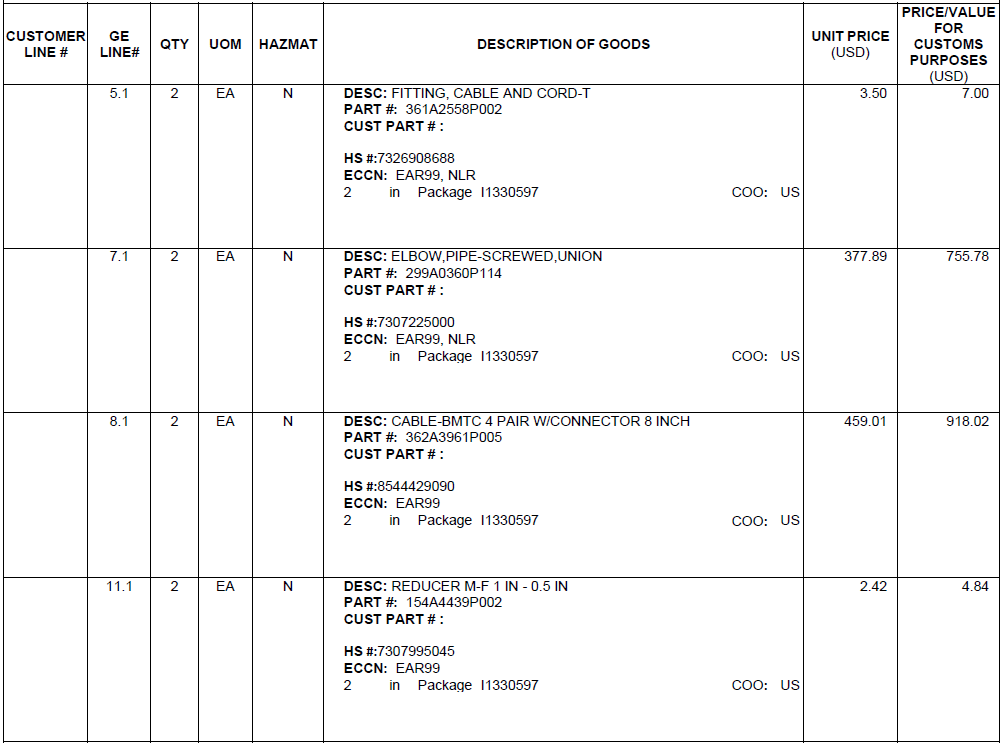
You can set the parameter values as shown below to remove the repeated row.
|
PARAMETER NAME |
PARAMETER VALUE |
|---|---|
|
Name |
@Table1 |
Note:
-
This rule is particularly useful when you have a large datatable extracted from a document and want to filter out specific rows that match certain criteria.
-
By providing the keyword or synonym to be removed as a parameter, you can ensure that only the relevant data remains in the datatable.
-
The "Remove Row from the Table" rule aids in creating a cleaner and more concise dataset by excluding rows that don't contribute to the desired information.
-
After applying this rule, the resulting datatable will only include the rows that meet your criteria and exclude the rows with the specified keyword or synonym.
Description: The "Search in Page Zone" extraction rule helps you extract relevant information from a defined region on a specific page of a document. This is achieved by specifying the horizontal and vertical boundaries of the region, as well as the percentage of space within those boundaries where the search will be conducted.
Rule details
Ontology screen name: Search in page from horizontal corner at horizontal edge to vertical corner at vertical edge at a horizontal distance at a horizontal percentage and vertical distance at vertical percentage on page number value
Programmatic name: FilterWordsAtADistanceFromAnchor
|
PARAMETER NAME |
PARAMETER VALUE |
PARAMETER NAME |
|---|---|---|
|
Horizontal Edge |
Selection list |
Indicates top / bottom boundary of the region of interest. Available options are: Bottom Edge, Left Edge, Right Edge, and Top Edge. Note Edge refers to the document contours. |
|
Vertical Edge |
Selection list |
Indicates the left / right boundary of the region of interest. Available options are: Bottom Edge, First printed line, Last printed line, Left Edge, Right Edge, and Top Edge. Note Edge refers to the document contours. |
|
Horizontal Percentage |
Selection list |
Indicates the area from the vertical edge that spans the region of interest horizontally. Permitted value-range is 5 % to 100%. |
|
Vertical Percentage |
Numeric |
Indicates the area from the horizontal edge that spans the region of interest vertically. Permitted value-range is 5 % to 100%, Above Table, and Below Table. Note Above Table and Below Table refers to the header and footer section of the document respectively. Click on the thumbnail below to understand what typically constitutes for a header, table, and footer in a document.
|
|
Value |
Numeric |
Page number on which the search is to be done. Permitted value-range is 0 to 9999, where '0' indicates all the pages. |
Example
For a given type of invoice, certain synonyms like invoice number, vendor name, and vendor address have been defined. Data related to these three synonyms is expected to be found in the first quadrant of the page that spans 50% of vertical and horizontal space from the top and left edge respectively. To extract the data related to the required synonyms, following parameter values can be passed to the rule.
|
PARAMETER NAME |
PARAMETER VALUE |
|---|---|
|
Horizontal Edge |
Top Edge |
|
Vertical Edge |
Left Edge |
|
Horizontal Percentage |
50% |
|
Vertical Percentage |
50% |
|
Value |
1 |
Note:
-
This rule is especially useful when you want to extract specific information located within a known region on a page, such as header sections, tables, or footer sections.
-
By narrowing down the search area using the horizontal and vertical edges along with the percentage values, you can achieve precise and targeted extraction.
-
The "Search in Page Zone" rule is an effective way to improve extraction accuracy by ignoring irrelevant parts of the page and focusing on the desired content.
-
It's important to determine the appropriate boundaries and percentages based on the layout of your documents to ensure accurate extraction of information.
Description: The "Search in Page Zone using Page List" extraction rule works similarly to the "Search in Page Zone" rule, but it allows you to perform the search on multiple pages within a specified region of interest. You can define the boundaries of the search area using horizontal and vertical edges, as well as the percentage of space within those boundaries.
Rule details
Ontology screen name: Search in page from horizontal corner at horizontal edge to vertical corner at vertical edge at a horizontal distance at a horizontal percentage and vertical distance at vertical percentage on page list
Programmatic name: FilterWordsAtADistanceFromAnchorBasedOnPageList
|
PARAMETER NAME |
PARAMETER VALUE |
PARAMETER NAME |
|---|---|---|
|
Horizontal Edge |
Selection list |
Indicates top / bottom boundary of the region of interest. Available options are: Bottom Edge, Left Edge, Right Edge, and Top Edge. Note Edge refers to the document contours. |
|
Vertical Edge |
Selection list |
Indicates the left / right boundary of the region of interest. Available options are: Bottom Edge, First printed line, Last printed line, Left Edge, Right Edge, and Top Edge. Note Edge refers to the document contours. |
|
Horizontal Percentage |
Selection list |
Indicates the area from the vertical edge that spans the region of interest horizontally. Permitted value-range is 5 % to 100%. |
|
Vertical Percentage |
Numeric |
Indicates the area from the horizontal edge that spans the region of interest vertically. Permitted value-range is 5 % to 100%, Above Table, and Below Table. Note Above Table and Below Table refers to the header and footer section of the document respectively. Click on the thumbnail below to understand what typically constitutes for a header, table, and footer in a document.
|
|
Page List |
Selection list |
Indicates the page on which the search is performed. Available options are: Custom, First Page, and Last Page. |
Example
For a given type of invoice, certain synonyms like invoice number, vendor name, and vendor address have been defined. Data related to these three synonyms is expected to be found in the first quadrant of the page that spans 50% of vertical and horizontal space from the top and left edge respectively. To extract the data related to the required synonyms, following parameter values can be passed to the rule.
|
PARAMETER NAME |
PARAMETER VALUE |
|---|---|
|
Horizontal Edge |
Top Edge |
|
Vertical Edge |
Left Edge |
|
Horizontal Percentage |
50% |
|
Vertical Percentage |
50% |
|
Page List |
Last Page |
Note:
-
This rule is particularly useful when you want to extract information from a specific area that remains consistent across different pages of a document.
-
By defining the search area and applying it to a list of pages, you can efficiently extract information from a set of pages in a standardized manner.
-
The "Search in Page Zone using Page List" rule is effective for situations where the layout of the document ensures that relevant information is consistently placed within a specific region on each page.
-
It's important to determine the appropriate boundaries and percentages based on the layout of your documents to ensure accurate extraction of information from the specified region across multiple pages.
Description: The "Search on a Line from Anchor Text" extraction rule enables you to search for specific keywords or synonyms within a specified search span on a particular line. This rule uses an anchor word as a reference point, and you can determine the line distance and horizontal search span to pinpoint the location of the information you need.
Rule details
Ontology screen name: Search on a line distance at line with word distance at distance from anchor text with anchor text value in specific direction
Programmatic name: FilterWordsOnTheLine
|
PARAMETER NAME |
PARAMETER TYPE |
PARAMETER DESCRIPTION |
|---|---|---|
|
Line |
Numeric |
Indicates the vertical search span in terms of number of lines from the anchor field line. For example, if the line distance is '1', the anchor text line and the line above or below it (based on Direction parameter) will be searched. Note A zero value indicates that all lines in a given direction (either top or bottom) will be included in the vertical search span. |
|
Distance |
Numeric |
Indicates the horizontal search span on a given line. The span starts from the left indent of the anchor word and reaches up to the nth word on the line. Note A zero value indicates that all words towards the right are be included in the horizontal search span. |
|
Anchor Text Value |
String/Reference |
A reference field that is to be used as a point of reference for the line and word distance. Note Multiple anchors can be added using ',' comma as a separator. |
|
Specific |
Selection list |
Indicates whether the vertical search span is upwards or downwards in reference to the anchor field. Available values are: Bottom and Top. |
Example
Consider that in a given invoice, the invoice date is to be extracted. It is known that the invoice date will appear somewhere towards the right direction with respect to the invoice number. Also, it can either be on the same line or towards the bottom with respect to the invoice number. (See illustration below.)
In this case, you can use the Search on Line rule to find the invoice date by setting the parameters values as shown below.
|
PARAMETER NAME |
PARAMETER VALUE |
|---|---|
|
Line |
3 |
|
Distance |
0 |
|
Anchor Text Value |
@InvoiceNumber |
|
Specific |
Bottom |
Note:
-
This rule is useful when you need to extract information located on a specific line with reference to an anchor word.
-
The "Search on a Line from Anchor Text" rule allows you to narrow down the search to a specific line and define the area within that line where you expect to find the required information.
-
It's important to carefully define the line distance and horizontal search span to accurately locate and extract the desired information.
-
The rule is effective for situations where the layout of the document ensures that relevant information is consistently placed on a particular line in relation to an anchor word.
-
By specifying multiple anchor words, you can search for information across multiple reference points, increasing the flexibility of the rule in various scenarios.
Description: The "Search on a Line from Multiple Anchor Text" extraction rule is an extension of the "Search on a Line from Anchor Text" rule, but it allows you to use multiple anchor words as reference points for the search. This is particularly helpful when you need to find information related to different keywords within a specific search span on a line.
Rule details
Ontology screen name: Search on a line distance at line with word distance at distance from multiple anchor text list with anchor text value in specific direction
Programmatic name: FilterWordsOnTheLineWithMultipleAnchors
|
PARAMETER NAME |
PARAMETER TYPE |
PARAMETER DESCRIPTION |
|---|---|---|
|
Line |
Numeric |
Indicates the vertical search span in terms of number of lines from the anchor field line. For example, if the line distance is '1', the anchor text line and the line above or below it (based on Direction parameter) will be searched. Note A zero value indicates that all lines in a given direction (either top or bottom) will be included in the vertical search span. |
|
Distance |
Numeric |
Indicates the horizontal search span on a given line. The span starts from the left indent of the anchor word and reaches up to the nth word on the line. Note A zero value indicates that all words towards the right are be included in the horizontal search span. |
|
Anchor Text Value |
String/Reference |
A reference field that is to be used as a point of reference for the line and word distance. Note Multiple anchors can be added using ',' comma as a separator. |
|
Specific |
Selection list |
Indicates whether the vertical search span is upwards or downwards in reference to the anchor field. Available values are: Bottom and Top. |
Example
Consider that in a given invoice, the invoice date is to be extracted. It is known that the invoice date will appear somewhere towards the right direction with respect to the invoice number. Also, it can either be on the same line or towards the bottom with respect to the invoice number. (See illustration below.)
In this case, you can use the Search on Line rule to find the invoice date by setting the parameters values as shown below.
|
PARAMETER NAME |
PARAMETER VALUE |
|---|---|
|
Line |
3 |
|
Distance |
0 |
|
Anchor Text Value |
@InvoiceNumber, @Date, @DueDate |
|
Specific |
Bottom |
Note:
-
This rule is particularly useful when you need to extract information related to different keywords located on the same line or slightly below the anchor words.
-
You can use multiple anchor words to search for different pieces of information within the same search span.
-
The "Search on a Line from Multiple Anchor Text" rule allows for flexibility in capturing data that may be scattered across a specific region on a line, making it suitable for cases where data may appear in various positions.
-
Careful selection of anchor words and accurate definition of the search span are essential to ensure accurate extraction.
-
This rule can improve efficiency in scenarios where multiple pieces of related information need to be extracted from the same region on a line.
Description: The "Search on Line with Discard Option" rule is an extension of the "Search on a Line from Multiple Anchor Text" rule. It allows you to specify an action to take when the search for keywords fails within the defined search span. You can choose to either "Discard" the extraction attempt or "Retain" the extraction with a fallback strategy, such as extracting default data.
Rule details
Ontology screen name: Search on a line distance at line with word distance at distance from multiple anchor text list with anchor text value in specific direction, with option action on fail
Programmatic name: FilterWordsOnTheLineWithDiscard
|
PARAMETER NAME |
PARAMETER TYPE |
PARAMETER DESCRIPTION |
|---|---|---|
|
Line |
Numeric |
Indicates the vertical search span in terms of number of lines from the anchor field line. For example, if the line distance is '1', the anchor text line and the line above or below it (based on Direction parameter) will be searched. Note A zero value indicates that all lines in a given direction (either top or bottom) will be included in the vertical search span. |
|
Distance |
Numeric |
Indicates the horizontal search span on a given line. The span starts from the left indent of the anchor word and reaches up to the nth word on the line. Note A zero value indicates that all words towards the right are be included in the horizontal search span. |
|
Anchor Text Value |
String/Reference |
A reference field that is to be used as a point of reference for the line and word distance. Note Multiple anchors can be added using ',' comma as a separator. |
|
Specific |
Selection list |
Indicates whether the vertical search span is upwards or downwards in reference to the anchor field. Available values are: Bottom and Top. |
|
Action on Fail |
String |
Indicates the action to be taken in case the validation check fails. Available options are Discard and Retain. |
Example
Consider that in a given invoice, the invoice date is to be extracted. It is known that the invoice date will appear somewhere towards the right direction with respect to the invoice number. Also, it can either be on the same line or towards the bottom with respect to the invoice number. (See illustration below.)
In this case, you can use the Search on Line rule to find the invoice date by setting the parameters values as shown below.
|
PARAMETER NAME |
PARAMETER VALUE |
|---|---|
|
Line |
3 |
|
Distance |
0 |
|
Anchor Text Value |
@InvoiceNumber, @Date, @DueDate |
|
Specific |
Bottom |
|
Action on Fail |
Retain |
Note:
-
This rule is particularly useful when you want to handle scenarios where not all keywords may be present, and you want to decide whether to discard the extraction attempt or retain it with a fallback strategy.
-
The "Action on Fail" option provides flexibility in managing extraction attempts when the expected data is not found.
-
Careful selection of anchor words, accurate definition of the search span, and appropriate choice of the action on fail are essential to ensure the desired extraction behavior.
-
This rule allows for more controlled handling of extraction results, enhancing the accuracy and quality of data extraction processes.
Description: The "Filter Using Nearest Word" rule enables you to search for synonyms or keywords near an anchor text within a defined search span. It is designed to help you extract data that is positioned a certain distance away from the anchor text, both vertically and horizontally, and in a specific area and direction. You can specify the number of lines and words to search, the reference anchor text, the search area (upwards or downwards), the search direction (horizontal or vertical), and the maximum count of words to extract.
Rule details
Ontology screen name: Filter extracted values that are at a line distance of specific lines and word distances of specific words from anchor text with specific text value towards specific area in specific direction with a maximum count of number of words
Programmatic name: FilterUsingNearestWord
|
PARAMETER NAME |
PARAMETER TYPE |
PARAMETER DESCRIPTION |
|---|---|---|
|
Specific Lines |
Numeric |
Indicates the vertical search span in terms of number of lines from the anchor field line. For example, if the line distance is '1', the anchor text line and the line above or below it (based on Direction parameter) will be searched. Note A zero value indicates that all lines in a given direction (either top or bottom) will be included in the vertical search span. |
|
Specific Words |
Numeric |
Indicates the horizontal search span on a given line. The span starts from the left indent of the anchor word and reaches up to the nth word on the line. Note A zero value indicates that all words towards the right are be included in the horizontal search span. |
|
Specific Text |
String/Reference |
A reference field that is to be used as a point of reference for the line and word distance. |
|
Specific Area |
Selection list |
Indicates whether the vertical search span is upwards or downwards in reference to the anchor field. Available values are: Bottom and Top. |
|
Specific Direction |
Selection list |
Indicates sorting of the extracted data. Available options are: Horizontally Farthest, Horizontally Nearest, Vertically Farthest, and Vertically Nearest. |
|
Number of |
Numeric |
Indicates the number of words that are to be extracted. Note Permitted value range is 0-9999, where 0 indicates that all words are to be extracted. |
Example
Consider that the following document contains a set of three available dates for a set of products and you want to extract the date 13-03-2021. (See illustration below.)
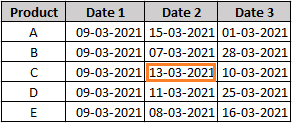
In this case, you can use the rule to find the transporter by setting the parameters values as shown below.
|
PARAMETER NAME |
PARAMETER VALUE |
|---|---|
|
Specific Lines |
3 |
|
Specific Words |
3 |
|
Specific Text |
@Date 2 |
|
Specific Area |
Bottom |
|
Specific Direction |
Horizontally Farthest |
|
Number Of |
0 |
Note:
-
Careful selection of the anchor text, accurate definition of the search span, and proper choice of search area and direction are crucial for successful extraction.
-
The "Filter Using Nearest Word" rule is especially useful when you need to extract data that is positioned at a specific distance from an anchor text, considering both vertical and horizontal offsets.
-
This rule enhances the accuracy and flexibility of data extraction processes, allowing you to target specific data points efficiently.
Description: The "Search with Custom Regular Expression" rule provides you with the capability to search for data using a custom regular expression pattern. Regular expressions are powerful tools for defining patterns that match specific strings of characters. This rule enables you to extract data that adheres to a pattern defined by a custom regular expression.
Rule details
Ontology screen name: Search with a regular expression using custom pattern value
Programmatic name: GetWordsByCustomRegularExpression
Note:
In case multiple instances of data are found to be matching the regular expression, they all will get fetched.
|
PARAMETER NAME |
PARAMETER TYPE |
PARAMETER DESCRIPTION |
|---|---|---|
|
Value |
String |
Custom regular expression that is to be used to extract data for the given synonyms. |
Example
Consider that user ids are to be extracted from the KYC forms of a given bank. The user id of the account holders comprises of an alphanumeric value that starts with two letters followed by four digits. Based on this information, a custom regular expression can be formed, say [A-Z]{2}[0-9]{4}, to extract the user id from the forms.
Note:
-
Regular expressions are a versatile tool for pattern matching in text. They can be as simple or complex as required, and they allow you to define intricate patterns for data extraction.
-
This rule is particularly useful when the data you need to extract follows a specific pattern that can be effectively described using regular expressions.
-
Regular expressions can be used to match various types of data, such as email addresses, phone numbers, dates, and more, based on the patterns they adhere to.
-
Careful crafting of the regular expression pattern is essential for accurate data extraction. Regular expressions can be complex, so testing and refining the pattern may be necessary to achieve the desired results.
Description: The "Search with Regular Expression" rule enables you to search for data using regular expressions that define complex patterns. Regular expressions are powerful tools for defining patterns that match specific strings of characters. This rule allows you to extract data that conforms to these patterns.
Rule details
Ontology screen name: Search for value with regular expression
Programmatic name: GetWordsByRegularExpression
Note:
-
You can apply regular expressions from the Regular Expressions tab available in the ontology window. Also, if multiple instances of data are found to be matching the regular expression, they all will get fetched.
-
Regular expressions are versatile tools for pattern matching in text. They provide a flexible and powerful way to extract data that follows specific patterns.
-
The Regular Expressions tab in the ontology window allows you to define and manage regular expressions for various extraction tasks.
-
Regular expressions can be used to match a wide range of data patterns, such as email addresses, dates, URLs, and more.
-
Proper understanding and construction of regular expression patterns are crucial for accurate data extraction.
-
If multiple instances of data match the specified regular expression, this rule will fetch all matching instances.
-
Regular expressions can be complex, so testing and refining the pattern may be necessary to achieve accurate and desired results.
Description: The "Search table field value at specific direction" rule allows you to search for table field values in a specified direction (either upwards or downwards) from the anchor field's position. This rule is typically used in scenarios where structured data is presented in tabular format, and you want to extract specific values from the table based on their position relative to a reference point.
Rule details
Ontology screen name: Search table field value at specific direction
Programmatic name: GetTableFieldValueByDirection
|
PARAMETER NAME |
PARAMETER TYPE |
PARAMETER DESCRIPTION |
|---|---|---|
|
Specific |
Selection list |
Indicates whether the vertical search span is upwards or downwards in reference to the anchor field. Available values are: Bottom and Top. |
Example
Consider that in a given credit report, the credit report title is to be extracted. (See illustration below.)
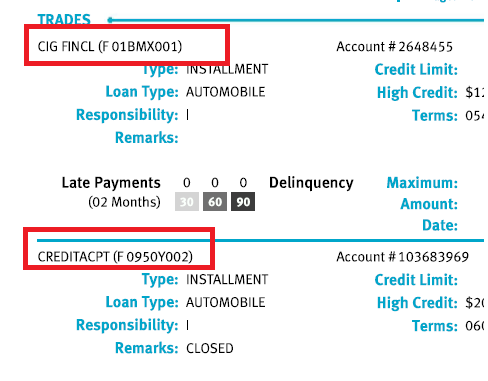
In this case, you can use the above rule to find the credit report title by setting the parameter value as shown below.
|
PARAMETER NAME |
PARAMETER VALUE |
|---|---|
|
Specific |
Top |
Note:
-
This rule is especially useful for structured documents where data is presented in tables, such as financial reports, invoices, and forms.
-
Ensure that the anchor field is accurately identified to correctly reference the starting point for data extraction.
-
The direction parameter ("Top" or "Bottom") determines whether the search is conducted upwards or downwards from the anchor field.
-
The extracted data will be the value found in the table field at the specified direction from the anchor field.
Description: The "Skip multiple rows" rule enables you to exclude a range of rows from extraction within a given datatable. This can be achieved by specifying the starting word and ending word that define the range of rows you want to skip. Rows between these two words will be ignored during data extraction.
Rule details
Ontology screen name: Skip the range of rows from the table for the row containing the start word value till the row containing the end word value
Programmatic name: SkipMultipleRowsInTable
|
PARAMETER NAME |
PARAMETER TYPE |
PARAMETER DESCRIPTION |
|---|---|---|
|
The start word |
String/Reference |
Name of the word indicating the position from which the rows need to be skipped. |
|
The end word |
String/Reference |
Name of the word indicating the position till which the rows need to be skipped. |
Note:
-
This rule is valuable when working with tabular data that contains rows that need to be excluded from analysis or extraction.
-
Ensure that the start and end words are accurately identified to define the range of rows you want to skip.
-
The rows within the specified range will be skipped, and the extraction will continue with the remaining rows.
-
This rule can help streamline data extraction by ignoring irrelevant or unnecessary rows.
Description:The "Split Table Field" rule enables you to extract values against specified synonyms found within an item description. It is important to note that this rule is applicable only to descriptive field types.
Rule details
Ontology screen name: Split the table field by separator
Programmatic name: GetTableFieldBaseOnOtherTableField
-
Split Table Field can only be used for descriptive field types.
-
The rule should be appropriately placed in the extraction sequence so that it gets the item description value as an input.
-
If a given synonym is found in the description, the rule will extract the value available on the right of the synonym. (In case there is no value on the right, the value placed just under the synonym is extracted.)
-
If multiple synonyms are found in the description, the rule will extract values for each of them.
Note:
Example
In the given document, the item description and the HSN are appearing together under the description column. Using the Split Table Field extraction rule, you can split the description and extract the HSN value.
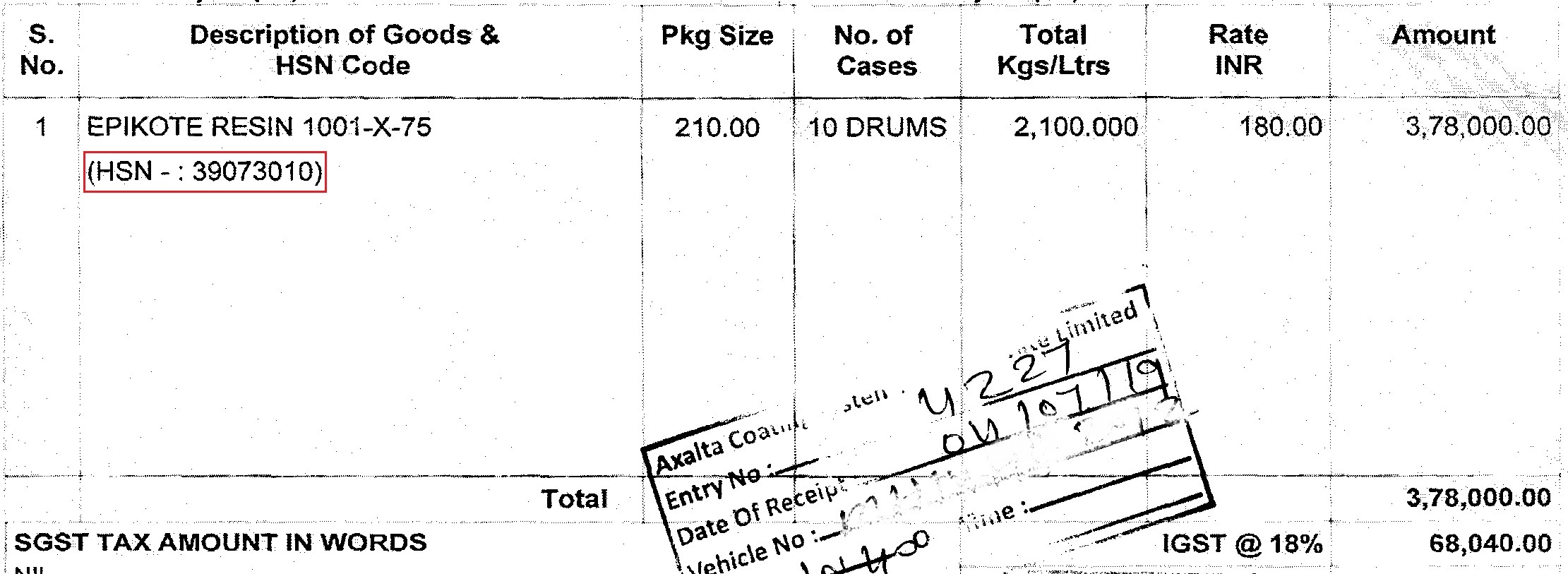
Note:
-
This rule is particularly useful for documents with tables where relevant information is embedded within descriptive text.
-
Ensure that the synonyms and separator are accurately defined to extract the desired values effectively.
-
This rule improves data extraction efficiency by targeting specific values within descriptive fields.
-
Use this rule when you want to extract structured information from textual descriptions within a table.
Description: The "Sum of Table Column" rule allows you to retrieve the sum of values present in a specific column of a table within a document. You can identify the column for which you want to calculate the sum, and the rule will perform the aggregation and return the total sum of the values in that column.
Rule details
Ontology screen name: Perform sum of the column name from table number
Programmatic name: GetSumOfAmount
|
PARAMETER NAME |
PARAMETER TYPE |
PARAMETER DESCRIPTION |
|---|---|---|
|
Name |
String/Reference |
Name of the column having the required values that are to be added. |
|
Number |
Numeric |
Number indicating the table index position in the document. Value starts from '1'. |
Example
In a given balance sheet document, the profit/loss summary for each of the four quarters of an year is available under Profit/Loss column of the second table. Using This rule, the net profit/loss can be calculated based on the parameters values as shown below.
|
PARAMETER NAME |
PARAMETER VALUE |
|---|---|
|
Name |
@Profit/Loss |
|
Number |
2 |
Note:
-
Ensure that you provide the correct column name and table index to accurately calculate the sum.
-
This rule is valuable for extracting aggregated numerical data, such as total sales, expenses, or profit/loss figures, from structured tables.
-
Utilize this rule when you want to automate the process of summing values across multiple rows in a specific column.
Description: The "Extract the value from above or below the table" rule enables you to extract a value that is situated either above or below a designated table in the document. You can choose the position (above or below) relative to the table from which you want to extract the value.
Rule details
Ontology screen name: Get the value from position of the table name
Programmatic name: GetAboveBelowTableValue
|
PARAMETER NAME |
PARAMETER TYPE |
PARAMETER DESCRIPTION |
|---|---|---|
|
Position |
Selection list |
Indicates the position from which the given value is to be extracted. Available options are Above and Below |
|
Name |
String |
Name of the datatable from whose position the value is to be fetched. |
Example
In a given tax invoice, the IRN number is available above the tax invoice table in the invoice sheet. Using this rule, the IRN number can be fetched based on the parameters values as shown below.
|
PARAMETER NAME |
PARAMETER VALUE |
|---|---|
|
Position |
Above |
|
Name |
@TaxInvoice |
Note:
-
Ensure that you provide the correct table name and position (above or below) to accurately extract the desired value.
-
This rule is particularly useful when you have important contextual information, such as reference numbers or notes, that are positioned relative to specific tables in your document.
Description: The "Extract the table column values having no column headers" rule enables you to extract data from a column that is situated between two defined column headers in the same table. This is useful when you have a table with missing header information and you need to extract values from the column between two known headers.
Rule details
Ontology screen name: Get column value between the left column value and right column value
Programmatic name: GetNoHeaderTableColumnValues
|
PARAMETER NAME |
PARAMETER TYPE |
PARAMETER DESCRIPTION |
|---|---|---|
|
Left Column Value |
String |
Name of the column header positioned at the left side of the value which is to be fetched. |
|
Right Column Value |
String |
Name of the column header positioned at the right side of the value which is to be fetched. |
Example
In a given timesheet, the column header between S.No and Name of Applicant is missing and we need to fetch data from the missing header column.
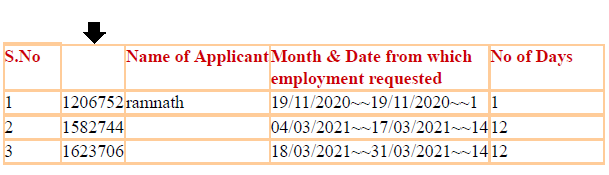
Using this rule, the data from the missing header column can be fetched based on the parameters values as shown below.
|
PARAMETER NAME |
PARAMETER VALUE |
|---|---|
|
Left column value |
@S.No |
|
Right column value |
@Name of Applicant |
Note:
-
Ensure that you provide the accurate column header names for the left and right sides to extract data from the intended column.
-
This rule is particularly handy when you need to work with data in a table where some columns might be missing their headers.
Description: The "Remove the table data from header field" rule is used to restrict the extraction of specific values that are within a table. This rule is beneficial when you want to exclude certain values from being extracted as part of your document processing workflow.
Rule details
Ontology screen name: Restrict value extraction within table
Programmatic name: RemoveTableDataFromHeaderField
Example
The below image shows that the value within the table is also extracted. But using this rule, we can restrict the extraction of values present within the table.
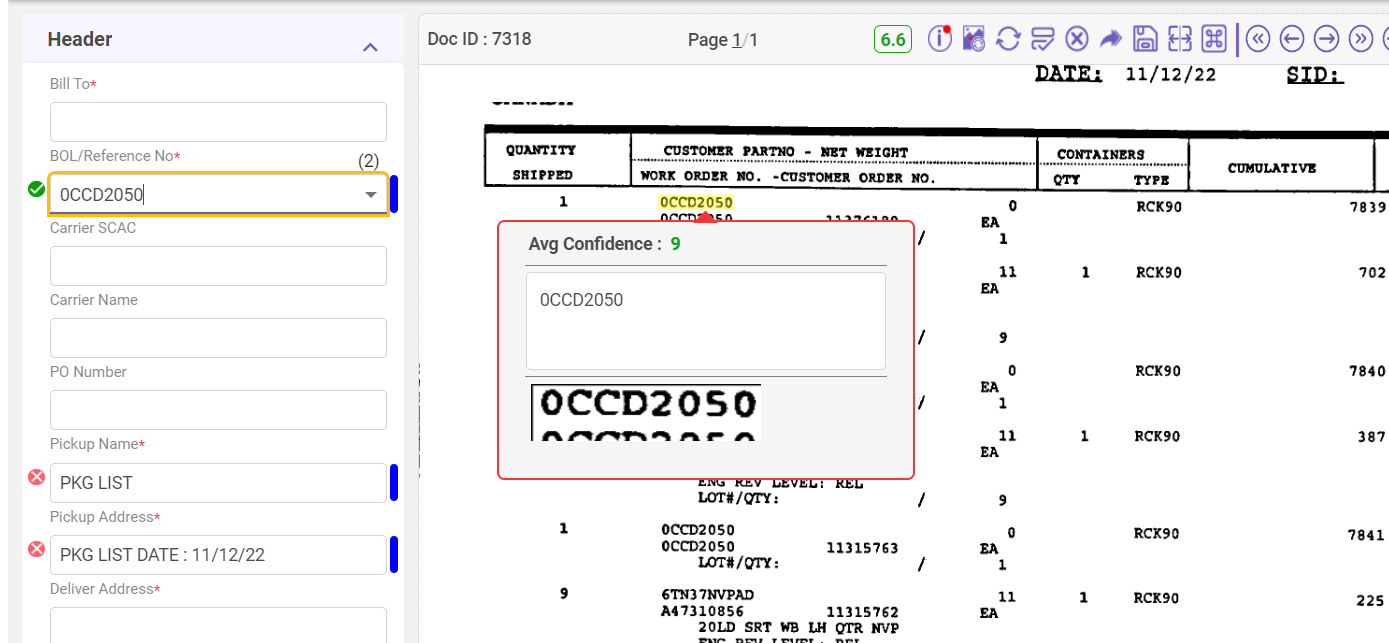
Note:
-
Ensure that you correctly specify the values you want to restrict from extraction.
-
This rule is particularly useful when you want to ensure accuracy and quality control by excluding unwanted or irrelevant values from your automated extraction results.
Description: The "Extract the min, max, % value in specified direction" rule is designed to extract specific words from a document based on specified synonyms. It uses a given word as a reference point and searches for the specified synonyms in the defined direction.
Rule details
Ontology screen name: Get the specific value in specific direction for specified synonyms
Programmatic name: GetTaxAmount
|
PARAMETER NAME |
PARAMETER TYPE |
PARAMETER DESCRIPTION |
|---|---|---|
|
Specific Value |
Selection list |
A reference field that is to be used as a point of reference for the word. Available options are: Maximum Value, Minimum Value, and Percentage Value. |
|
Specific Direction |
Selection list |
Indicates sorting of the extracted data. Available options are: Bottom, Left, Right, and Top. |
Example
Consider that in a given invoice, the invoice date is to be extracted. It is known that the invoice date will appear somewhere towards the right direction with respect to the invoice number. Also, it can either be on the same line or towards the bottom with respect to the invoice number.
You can set the parameters values as shown below to fetch the required data.
|
PARAMETER NAME |
PARAMETER VALUE |
|---|---|
|
Specific Value |
Maximum Value |
|
Specific Direction |
Bottom |
Note:
-
Ensure that the reference word and synonyms are correctly identified for accurate extraction.
-
This rule can be particularly helpful when you need to extract specific values that are positioned relative to other reference words in a document.
Description: The "Insert the Day for the Extracted Date" rule is designed to enhance date values by adding the day component to dates where only the month and year are available.
Rule details
Ontology screen name: Insert the day for the extracted date
Programmatic name: InsertTheDayForTheExtracteddate
|
PARAMETER NAME |
PARAMETER TYPE |
PARAMETER DESCRIPTION |
|---|---|---|
|
Day |
Selection List |
Indicates the day of the month which is to be extracted. Available options are First Day and Last Day |
Example
The given statement consists of two dates, July 2013 and February 2014, without the day mentioned. Suppose we want to extract the first day of the month.

Using this rule, the first day is prefixed to the extracted date. The extracted output would be 1st July 2013 and 1st February 2014.
|
PARAMETER NAME |
PARAMETER VALUE |
|---|---|
|
Day |
first day |
Similarly, a user can extract the last day of the month by selecting the parameter value as last day.
Note:
-
Ensure that the context of the document and the extracted dates align with the intended use of the rule.
-
This rule is particularly useful when you have date values with incomplete information and need to standardize them by adding missing components.
Description: The "Get the Value from Address Field" rule is designed to extract specific pieces of information from an address field in a document. This is particularly useful when you need to isolate and extract components of an address for further processing or analysis.
Rule details
Ontology screen name: Get the value from address field
Programmatic name: GetAddressConstituents
|
PARAMETER NAME |
PARAMETER TYPE |
PARAMETER DESCRIPTION |
|---|---|---|
|
Value |
Selection list |
Indicates the information that is to be extracted from the address field. Available options are: City, Country, Postal Code, and State. |
|
Address Field |
Selection list |
A reference field that is to be used as a point of reference for the word. |
Example
Consider that in a given invoice, the postal code is to be extracted. You can set the parameters values as shown below to fetch the required data.
|
PARAMETER NAME |
PARAMETER VALUE |
|---|---|
|
Value |
Postal Code |
|
Address Field |
@Address1 |
Note:
-
Ensure that the address field in the document is properly recognized and segmented so that the rule can accurately extract the desired information.
-
Verify that the chosen parameter values align with the information you are seeking to extract from the address field.
Description: The "Extract the intersected value using x and y coordinates" rule allows you to extract a value that is situated at the point where two specific keywords intersect. This can be beneficial when you want to extract information that is determined by the intersection of two dimensions or attributes.
Rule details
Ontology screen name: Get the intersecting value between x axis keyword and y axis keyword with anchor keyword
Programmatic name: GetIntersectedValue
|
PARAMETER NAME |
PARAMETER TYPE |
PARAMETER DESCRIPTION |
|---|---|---|
|
X axis keyword |
String |
Name of the keyword present on the x axis. |
|
Y axis keyword |
String |
Name of the keyword present on the y axis. |
|
Keyword |
String |
Name of the keyword to be considered as an anchor value. |
Example
Consider that in a given invoice, the amount is to be extracted.
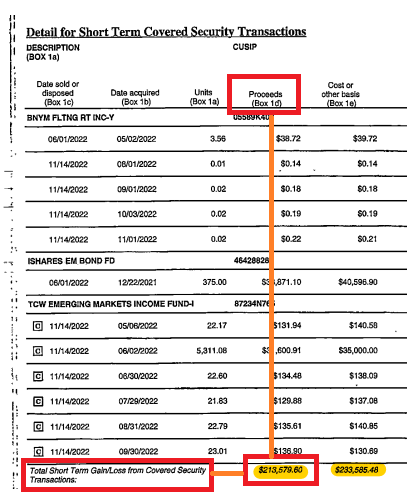
You can set the parameters values as shown below to fetch the required data.
|
PARAMETER NAME |
PARAMETER VALUE |
|---|---|
|
X axis keyword |
Short |
|
Y axis keyword |
Proceeds |
|
Keyword |
Security |
Note:
-
Ensure that the keywords on the X and Y axes, as well as the anchor keyword, are accurately recognized within the document or dataset.
-
Verify that the chosen keywords accurately represent the intersection point for the value you are seeking to extract.
Description: The "Extract the Table Paragraph Data between Table Headers and First Row" rule is designed to extract extra description text that overlaps with other columns in a table. This rule is helpful when you need to extract textual information that is embedded within the table structure but is not part of the structured tabular data.
Rule details
Ontology screen name: Get Table paragraph data between table headers and first row
Programmatic name: GetTableParagraphData
Example
The below image shows that the value within the table overlaps with other column. But using this rule, we can extract the extra description.
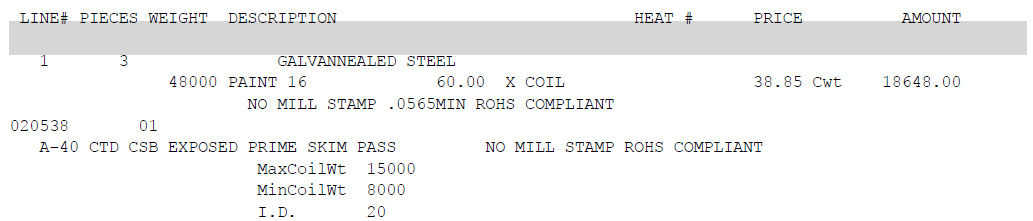
Note:
-
Ensure that the rule is applied correctly to the desired table and that the description text you want to extract overlaps with other columns.
-
Verify that the rule accurately identifies and extracts the extra description text without including any unrelated content.
Description: The "Get the field value by using metadata" rule is designed to extract field value using metadata that is in JSON format.
Rule details
Ontology screen name: Get the field value by json metadata and json path
Programmatic name: GetFieldValue
Example
Get the field value by json metadata @@ClientMetaData and §data/shipment/chargeToCd§
where, "Metadata" is clientMetadata(json format) will get from api call.
"JsonPath" is path of value in Json data. it is case sensitive
Description: The "Get all the values after the keyword at direction specific in JSON format" rule is designed to extract data from a document by locating a specific keyword and then capturing all the information that appears after it, based on the specified direction. The extracted data will be provided in JSON format, making it easy for further processing and integration with other systems.
Rule details
Ontology screen name: Get all the values after the keyword at direction specific in JSON format.
When you select Json as a field type while defining header field, the above rule is automatically selected under the Extraction Rule tab.
|
PARAMETER NAME |
PARAMETER TYPE |
PARAMETER DESCRIPTION |
|---|---|---|
|
Keyword |
String |
Name of specific word or phrase that serves as a reference point for the extraction. A user can add multiple keywords using comma as a separator. |
|
Specific |
Selection List |
This indicates the orientation or location of the keyword within the document. It specifies where to look for the keyword. |
Example
Consider that in a given invoice, you want to extract a particular data (see image below) in JSON format.
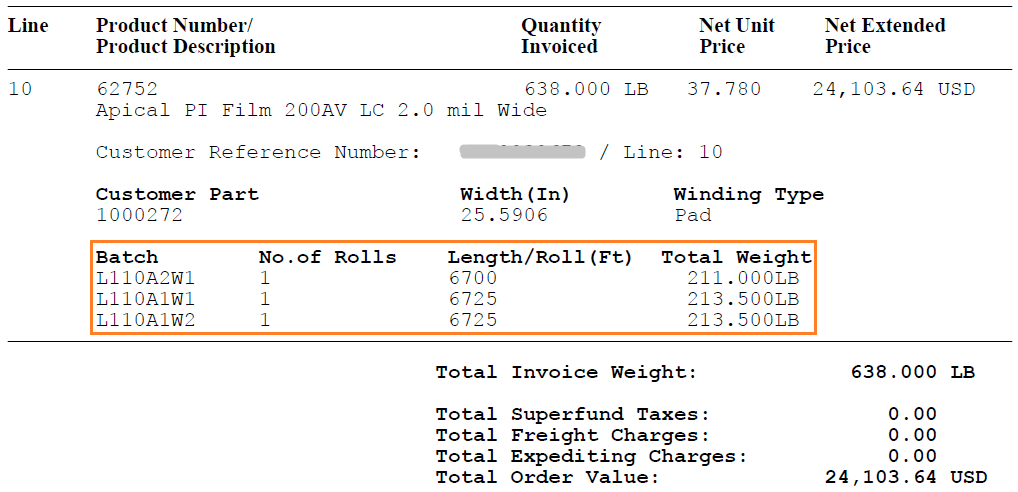
You can set the parameters values as shown below while setting the Header field to fetch the required data.
|
PARAMETER NAME |
PARAMETER VALUE |
|---|---|
|
Keyword |
Batch, L110A2W1, L110A1W1, L110A1W2 |
|
Specific |
Right |
Description: The "Get the column index attribute from JSON field name value" rule provides a structured way to specify which data to extract from JSON documents by referencing the column index and the field name within the JSON data. It allows for precise data extraction from JSON files during document processing.
Rule details
Ontology screen name: Get the column index attribute from JSON field name value.
|
PARAMETER NAME |
PARAMETER TYPE |
PARAMETER DESCRIPTION |
|---|---|---|
|
Index |
Numeric |
It refers to the position or index of the column within the JSON document that contains the desired data. |
|
Fieldname |
String |
It represents the name of the field within the JSON document where the desired data is located. The user provides the specific field name. |
Example
Consider that in a given invoice, you want to extract a particular data in a table format.
You can set the parameters values as shown below while setting the Table field to fetch the required data.
|
PARAMETER NAME |
PARAMETER VALUE |
|---|---|
|
Index |
1 |
|
Fieldname |
@Sub Industry Div Json Note This is the header field name that is set while extracting information in JSON format. Refer Get all the values after the keyword at direction specific in JSON format rule. |
Description: The "Retrieve information from field using specified regular expression format" rule to retrieve specific information from a field based on a predefined condition.
Rule details
Ontology screen name: If the value in the specified field matches value, retrieve information from field using the specified regular expression format.
|
PARAMETER NAME |
PARAMETER TYPE |
PARAMETER DESCRIPTION |
|---|---|---|
|
Specific Field |
String |
A reference field that is to be used as a point of reference for the word. |
|
Value |
String |
Indicates the information that is to be matched with the specific field. |
|
Field |
String |
It represents the name of the field from which the information is to be retrieved. |
|
Format |
String |
It represents the regular expression format that is to be used to retrieve information. |
Example
Consider that in a given invoice, you want to extract a specific information for vendor ABC. You can set the parameters values as shown below to fetch the required data.
|
PARAMETER NAME |
PARAMETER VALUE |
|---|---|
|
Specific Field |
@Vendor |
|
Value |
ABC |
|
Field |
@Additional Description |
|
Format |
(Wt:min.)(\d{1,3}(,\d{3})*(\.\d+)?) |
Description: The "Filter suggestion input data for AI engine from start text to end text" rule is designed to filter and provide input data for an Artificial Intelligence (AI) engine. It involves specifying a range of text, from a starting point to an ending point, to be used as input for the AI engine.
Rule details
Ontology screen name: Filter suggestion input data for AI engine from start text to end text
|
PARAMETER NAME |
PARAMETER TYPE |
PARAMETER DESCRIPTION |
|---|---|---|
|
Start Text |
String |
Indicates the beginning point or marker in the document from where the extraction process will start. The text specified here serves as the starting reference. |
|
End Text |
String |
Indicates the endpoint or marker in the document where the extraction process will conclude. The text specified here serves as the ending reference. |
Example
Consider a document where you have a section containing relevant information for a specific task, and you want to filter and use this section as input for an AI engine. You can set the parameters values as shown below to fetch the required data.
|
PARAMETER NAME |
PARAMETER VALUE |
|---|---|
|
Start Text |
Begin Extraction Here |
|
End Text |
End Extraction Here |
Validation rules
Under the Validation tab, the validation rules applied to validate the extracted data from a given document are displayed. To add a validation rule, click on +Add New Rule.
Note:
Specific validation rules may get available by default for a given field type. For example, the rule designed to extract an Aadhaar number for field type as Aadhaar Number will automatically become available under Validation tab.
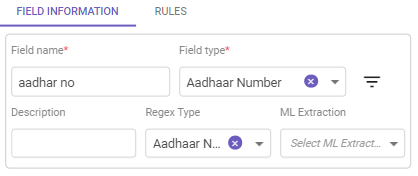
Field Type selected as Aadhaar Number
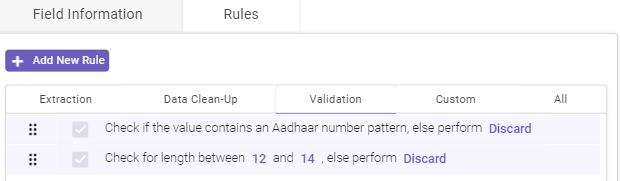
Automatically selected validation rule
To prevent a validation rule from getting applied, user can clear the checkbox next to the required validation rule under the Validation tab. All the selected validation rules are displayed under the All tab.)
Below is the list of the available validation rules with their explanation.
Description: The "Check Character Case" validation rule aims to validate whether the character case of the extracted data conforms to the expected character case format. This validation is important to ensure that extracted values adhere to the desired standards and consistency.
Rule details
Ontology screen name: Check if the value has character case, else perform action on fail
Programmatic name: CheckCharacterCase
|
PARAMETER NAME |
PARAMETER TYPE |
PARAMETER DESCRIPTION |
|---|---|---|
|
Character Case |
String |
Expected character case. Available options are Lowercase and Uppercase. |
|
Action on Fail |
String |
Indicates the action to be taken in case the validation check fails. Available options are Discard, Discard and Continue, and Retain. By default, the Discard and Continue option is selected, change it as per your requirement. |
Example
Consider that the extracted data is ONE THOUSAND TWO HUNDRED ONLY, which represents an amount in words in a given cheque. Based on the parameter values given below, the validation check will fail as the data comprises of upper-case characters. The extracted data will get discarded.
|
PARAMETER NAME |
PARAMETER TYPE |
|---|---|
|
Character Case |
Lowercase |
|
Action on Fail |
Discard |
Note:
-
The "Check Character Case" validation rule is useful for ensuring consistent data formatting, particularly when character case conformity is crucial.
-
It helps maintain data accuracy and quality by flagging or correcting extracted values that do not meet the defined character case expectations.
Description: The "Check if Alphabets" validation rule is designed to validate whether the characters in the extracted data are exclusively alphabetic letters. This validation is essential to ensure that the extracted value meets certain standards and quality criteria.
Rule details
Ontology screen name: Check if the value is purely alphabetic , else perform action on fail
Programmatic name: IsAlphabetic
|
PARAMETER NAME |
PARAMETER TYPE |
PARAMETER DESCRIPTION |
|---|---|---|
|
Action on Fail |
String |
Indicates the action to be taken in case the validation check fails. Available options are Discard, Discard and Continue, and Retain. By default, the Discard and Continue option is selected, change it as per your requirement. |
Example: 1
Consider that the extracted data is IN456ER, which represents an invoice number in a given invoice. The validation check will get failed as the data represents an alphanumeric value.
Example: 2
Consider that the extracted data is RAMESH INDUSTRIES, which represents a recipient name in a given invoice . The data will pass the validation check as it comprises of letters only.
Note:
-
The "Check if Alphabets" validation rule is useful for verifying the data quality and ensuring that certain fields, such as names or labels, contain only valid characters.
-
Empty spaces in the extracted data are ignored.
-
This rule can be used to prevent incorrect or invalid data from being included in further processing or analysis.
Description: The "Check if AlphaNumeric" validation rule is designed to validate whether the characters in the extracted data are a combination of alphabetic letters and numeric digits. This validation is important for ensuring that the extracted value is a valid alphanumeric identifier.
Rule details
Ontology screen name: Check if the value contains alphanumeric values, else perform action on fail
Programmatic name: IsAlphaNumeric
|
PARAMETER NAME |
PARAMETER TYPE |
PARAMETER DESCRIPTION |
|---|---|---|
|
Action on Fail |
String |
Indicates the action to be taken in case the validation check fails. Available options are Discard, Discard and Continue, and Retain. By default, the Discard and Continue option is selected, change it as per your requirement. |
Example: 1
Consider that the extracted data is B12Z9representing a boarding pass number in a given flight ticket. The validation check when applied on this data will pass as it comprises of alphanumeric characters.
Example: 2
Consider that the extracted value is IN2020/09/23 representing a registration number in a given application form. The validation check when applied on this data will fail as the data contains special characters.
Note:
-
The "Check if AlphaNumeric" validation rule is useful for verifying the validity of data that should be a combination of letters and digits, such as identification numbers, codes, and references.
-
Blank spaces are ignored.
-
This rule helps prevent incorrect or invalid data from being included in further processing or analysis.
Description: The "Check if Dependent Field" validation rule is designed to validate whether a dependent field has been successfully extracted based on the presence of another field. This validation ensures that fields that rely on each other are consistently extracted together, preserving data integrity and accuracy.
Rule details
Ontology screen name: Check if dependent field is extracted else perform action on fail
Programmatic name: ValidateFieldDependency
|
PARAMETER NAME |
PARAMETER TYPE |
PARAMETER DESCRIPTION |
|---|---|---|
|
Dependent Field |
String |
Indicates the dependent field that needs to be fetched. |
|
Action on Fail |
String |
Indicates the action to be taken in case the validation check fails. Available options are Discard, Discard and Continue, and Retain. By default, the Discard and Continue option is selected, change it as per your requirement. |
Example
Consider that you need to extract a PO number along with the PO date (which is dependent on PO number) from a purchase order document. Based on the parameter values in the given table, if the PO number is extracted then even the PO date field will be extracted or vice-versa.
|
PARAMETER NAME |
PARAMETER TYPE |
|---|---|
|
Dependent Field |
@PO Number |
|
Action on Fail |
Discard |
Note:
-
The "Check if Dependent Field" validation rule is particularly useful when there is a logical relationship between different fields in a document, and the extraction of one field is dependent on the successful extraction of another.
-
This rule helps maintain data integrity by ensuring that related fields are consistently and correctly extracted together.
-
Proper parameter configuration is important to accurately validate field dependencies and manage the actions to be taken when validation fails.
Description: The "Check if Only Digits" validation rule verifies whether the extracted data contains only integer digits. This validation is important when you need to ensure that a specific field contains a valid integer value and doesn't include any non-numeric characters.
Rule details
Ontology screen name: Check if the value contains only digits, else perform action on fail
Programmatic name: IsInteger
|
PARAMETER NAME |
PARAMETER TYPE |
PARAMETER DESCRIPTION |
|---|---|---|
|
Action on Fail |
String |
Indicates the action to be taken in case the validation check fails. Available options are Discard, Discard and Continue, and Retain. By default, the Discard and Continue option is selected, change it as per your requirement. |
Example: 1
Consider the extracted data is 400001, which represents a pincode in an application form. The data will pass the validation check as it represents an integer number.
Example: 2
Consider the extracted data is IN103456, which represents an application ID in an application form. The validation check will get failed as the data represents an alphanumeric value.
Note:
-
The "Check if Value is Numeric" validation rule is useful when you want to ensure that a field contains a valid integer value and doesn't include any non-numeric characters.
-
This rule is especially relevant for fields that are expected to represent numerical values, such as pin codes, IDs, quantities, etc.
-
While the rule considers negative integer values as valid, it will fail if the data contains non-numeric characters or decimal points.
Description: The "Check Character Limit Length" validation rule verifies whether the length of the extracted data is within a specified range. This validation is useful when you need to ensure that a certain field's content is of an appropriate length, such as within a minimum and maximum character count.
Rule details
Ontology screen name: Check for length between the minimum length and the maximum length, else perform action on fail
Programmatic name: CheckCharLimitLength
|
PARAMETER NAME |
PARAMETER TYPE |
PARAMETER DESCRIPTION |
|---|---|---|
|
The Minimum Length |
Numeric |
Lower limit of the range. Minimum value is 1. |
|
The Maximum Length |
Numeric |
Upper limit of the range. Minimum value is 1. |
|
Action on Fail |
String |
Indicates the action to be taken in case the validation check fails. Available options are Discard and Discard and Continue. By default, the Discard and Continue option is selected, change it as per your requirement. |
Example
Consider that price quotations have been received from foreign vendors against a tender. While processing the quotation documents, the telephone number of each vendor is to be extracted and validated by checking its length. Since the length of international telephone numbers can vary from 7 to 15 digits (depending upon the country), an appropriate validation will have to be set.
Based on the parameter values given in the below table, an extracted data will pass the validation check if its length is ≥7 or ≤15. In case the length is not within the range, it will get discarded.
|
PARAMETER NAME |
PARAMETER VALUE |
|---|---|
|
The Minimum Length |
7 |
|
The Maximum Length |
15 |
|
Action on Fail |
Discard |
-
Note:
-
The "Check Character Limit Length" validation rule is used to ensure that the length of the extracted data falls within a specified range.
-
This rule is particularly relevant when you want to enforce length constraints on fields, such as phone numbers, codes, or identifiers.
-
By setting the minimum and maximum length, you can define the acceptable range for the length of the extracted data.
-
The rule considers the lower and higher limits to be inclusive in the specified range.
-
If the data length does not match the specified range, the action specified in the "Action on Fail" parameter will be executed.
Description: The "Validate Currency Value" validation rule validates whether an extracted currency value conforms to a specified currency style format. This validation is useful when you want to ensure that currency values extracted from documents are consistent with a particular currency format.
Rule details
Ontology screen name: Check if currency value matches the currency format with format of currency style, else perform action on fail
Programmatic name: IsValidCurrencyValue
|
PARAMETER NAME |
PARAMETER TYPE |
PARAMETER DESCRIPTION |
|---|---|---|
|
Style |
String |
Indicates the currency style. Available option is AutoDetectCurrency |
|
Action on Fail |
String |
Indicates the action to be taken in case the validation check fails. Available options are Discard, Discard and Continue, and Retain. By default, the Discard and Continue option is selected, change it as per your requirement. |
Example
Consider that you need to extract a currency value from the document. Based on the parameter values given below, if the data does not match with the currency style then it will be discarded.
|
PARAMETER NAME |
PARAMETER TYPE |
|---|---|
|
Style |
AutoDetectCurrency |
|
Action on Fail |
Discard |
Note:
-
The "Check Currency Value" validation rule ensures that extracted currency values adhere to a specified currency style format.
-
This rule is useful for maintaining consistency and accuracy in currency values extracted from various documents.
-
By specifying the currency style or using the "AutoDetectCurrency" option, you can validate that the currency values match the expected format.
-
If the data doesn't match the currency style format, the action specified in the "Action on Fail" parameter will be executed. This can involve discarding the data or proceeding with the extraction process based on your requirements.
Description: The "Check Occurrence of Digit/Letter" validation rule is used to validate whether the occurrence count of a given data type (digit or letter) in an extracted data matches or exceeds a specified value. This validation rule is beneficial when you want to ensure that the extracted data contains a minimum number of digits or letters to fulfill certain criteria.
Rule details
Ontology screen name: Check the type of data with a minimum occurance count of value, else perform action on fail
Programmatic name: CheckOccuranceOf
|
PARAMETER NAME |
PARAMETER TYPE |
PARAMETER DESCRIPTION |
|---|---|---|
|
Type of Data |
String |
Name of the datatype for which the count is to be validated. Options are Digit and Letter. |
|
Value |
Numeric |
Minimum occurrence count of a given datatype. Value starts from '1'. |
|
Action on Fail |
String |
Indicates the action to be taken in case the validation check fails. Available options are Discard, Discard and Continue, and Retain. By default, the Discard and Continue option is selected, change it as per your requirement. |
Example
Consider that in a product information document, the physical dimensions of the product are expressed in L x B x H format, where length, breadth, and height are mentioned in integers. The dimensions of the product are to be extracted.
Based on the parameter values in the given table, it can be determined whether the extracted data probably represents the physical dimensions. In case the validation fails, the extracted data gets discarded.
|
PARAMETER NAME |
PARAMETER TYPE |
|---|---|
|
Type of Data |
Digit |
|
Value |
3 |
|
Action on Fail |
Discard |
Note:
-
The "Check Occurrence of Digit/Letter" validation rule is used to ensure that the occurrence count of a specific data type (digit or letter) in the extracted data meets certain criteria.
-
All physical dimensions will have at least three integers, each representing length, breadth, height of the product respectively. The least value of each dimension can be one, which is a single digit integer. Since there are three dimensions, the minimum count of digits in the extracted data should be three.
-
This rule is particularly useful when you need to validate that the extracted data contains a minimum number of digits or letters to fulfill specific requirements.
-
By setting the appropriate value and choosing the data type (digit or letter), you can ensure that the extracted data meets the occurrence criteria.
-
If the data doesn't meet the specified occurrence criteria, the action specified in the "Action on Fail" parameter will be executed. This can involve discarding the data or proceeding with the extraction process based on your requirements.
Description: The "Compare Amount in Words" validation rule is used to ensure that the extracted amount in words matches the numeric value represented by a specified anchor field. This validation rule is particularly useful when you need to verify that the text-based representation of a numeric value (amount in words) is accurate and consistent with the actual numeric value.
Rule details
Ontology screen name: Compare the anchor number value in words, else perform action on fail
Programmatic name: CheckAmountWithWordAndValue
|
PARAMETER NAME |
PARAMETER TYPE |
PARAMETER DESCRIPTION |
|---|---|---|
|
Value |
Numeric |
A field representing a numeric value with which the extracted data is to be compared. |
|
Action on Fail |
String |
Indicates the action to be taken in case the validation check fails. Available options are Discard, Discard and Continue, and Retain. By default, the Discard and Continue option is selected, change it as per your requirement. |
Example
In the given snippet, the total invoice value expressed in words and in figure are to be compared.

By setting the parameter values as shown in the below table, the validation rule will compare the amount represented by the @TotalInvoiceValue (12611.25) with the extracted data (Twelve Thosuand...). In case there is a match, the validation will pass; otherwise it will fail. In event of failure, the extracted data will still be retained.
|
PARAMETER NAME |
PARAMETER VALUE |
|---|---|
|
Value |
@TotalInvoiceValue |
|
Action on Fail |
Retain |
Note:
-
The "Compare Amount in Words" validation rule is used to verify the accuracy of text-based representations of numeric values (amount in words) by comparing them with actual numeric values.
-
This rule ensures that the amount in words matches the numeric value, providing a measure of validation for financial or numerical data.
-
By comparing the numeric value to the extracted amount in words, you can identify inconsistencies or errors in the data.
-
The "Action on Fail" parameter determines how the rule responds if a mismatch is detected. You can choose to discard the data or retain it, based on your requirements.
Description: The "Compare Date" validation rule is used to compare the extracted date with a specified date value using a filter. The rule allows you to define a comparison condition (e.g., greater than, less than) and take specific actions based on the outcome of the comparison.
Rule details
Ontology screen name: Compare the date value by applying the filter, else perform action on fail
Programmatic name: CompareDate
|
PARAMETER NAME |
PARAMETER TYPE |
PARAMETER DESCRIPTION |
|---|---|---|
|
Value |
Numeric |
Indicates the date that needs to be fetched. |
|
Filter |
Selection List |
Indicates the filter options that can be applied to compare the extracted date. Available options are is greater than, is greater than or equal, is less than, and is less than or equal. |
|
Action on Fail |
String |
Indicates the action to be taken in case the validation check fails. Available options are Discard, Discard and Continue, and Retain. By default, the Discard and Continue option is selected, change it as per your requirement. |
Example
Based on the parameter value given below, the extracted date can be compared with the @DATE field representing a Date.
|
PARAMETER NAME |
PARAMETER VALUE |
|---|---|
|
Value |
@DATE |
|
Filter |
is greater than |
|
Action on Fail |
Discard |
Note:
-
The "Compare Date" validation rule is used to enforce date-based comparison checks during data validation.
-
You can use this rule to ensure that dates meet certain conditions, such as being greater than or equal to a specific reference date.
-
The "Action on Fail" parameter determines how the rule responds if the comparison condition is not met. You can choose to discard the data or retain it based on your requirements.
Description: The "Compare Lookup Values" validation rule checks if the extracted data matches a specific lookup value. If the match is successful, the rule can take an action based on the specified conditions.
Rule details
Ontology screen name: Compare lookup value, else perform action on fail
Programmatic name: CheckIfValueMatches
|
PARAMETER NAME |
PARAMETER TYPE |
PARAMETER DESCRIPTION |
|---|---|---|
|
Value |
Reference |
A field or a static value with which the extracted data is to be compared. |
|
Action on Fail |
String |
Indicates the action to be taken in case the validation check fails. Available options are Discard, Discard and Continue, and Retain. By default, the Discard and Continue option is selected, change it as per your requirement. |
Example
Based on the parameter value given below, the extracted data can be compared with the @PAN anchor field representing a PAN. (In case the validation fails, the extracted value will still be retained.)
|
PARAMETER NAME |
PARAMETER VALUE |
|---|---|
|
Value |
@PAN |
|
Action on Fail |
Retain |
Note:
-
The "Compare Lookup Values" validation rule is used to verify if extracted data matches a reference value.
-
You can apply this rule to ensure that specific data elements, such as identification numbers or codes, match expected values.
-
The "Action on Fail" parameter determines the rule's behavior when the validation fails. You can choose to discard the data or retain it based on your requirements.
Description: The "Compare with Lookup Values" validation rule is used to verify if an extracted data value exists within a given datatable column. Depending on the result of the comparison, the rule can take specific actions.
Rule details
Ontology screen name: In lookup data table value having lookup column name with check type compare within a near match threshold else perform action on fail
Programmatic name: IsValueExistsInLookup
|
PARAMETER NAME |
PARAMETER VALUE |
PARAMETER NAME |
|---|---|---|
|
Value |
Reference |
A field that refers to a datatable in which the extracted data is to be looked up. |
|
Name |
String |
Name of the datatable column in which the extracted data is to be looked up. |
|
Type |
String |
Type of match that is to be done between the extracted data and the datable column values. Available options are Exact and Near Match. Note Near Match option is reserved for future use. |
|
Threshold |
Numeric |
Indicates the percentage of value that is to be looked up. Available options are 100% and NA. |
|
Action on Fail |
String |
Indicates the action to be taken in case the validation check fails. Available options are Discard, Discard and Continue, and Retain. By default, the Discard and Continue option is selected, change it as per your requirement. |
Example
Consider that the extracted value represents the name of a vendor, and it is to be found whether the vendor name is in the empanelled list of vendors or not. The name of empanelled vendors and their details are available in a datatable referred to by @EmpanelledVendors anchor field.
Based on the parameter values in the given table, the validation rule can check and validate whether the vendor name (represented by the extracted data) is available in the datatable (referred to by @EmpanelledVendors). (In case the name is not found, the extracted value will get discarded.)
|
PARAMETER NAME |
PARAMETER VALUE |
|---|---|
|
Value |
@EmpanelledVendors |
|
Name |
VendorName |
|
Type |
Exact |
|
Threshold |
NA |
|
Action on Fail |
Discard |
Note:
-
This rule is useful for verifying if an extracted data value is present in a reference datatable.
-
The "Type" parameter specifies whether an exact match or a near match should be considered. As of now, "Near Match" is reserved for future use.
-
The "Threshold" parameter defines the similarity threshold percentage for a match. The available options are 100% (exact match) and NA (Not Applicable).
-
The "Action on Fail" parameter determines the rule's behavior when the validation fails. You can choose to discard the data or retain it based on your requirements.
Description: The "Check if Value Contains Keyword" validation rule is designed to identify and handle cases where the extracted data might contain invalid keywords. By specifying a list of invalid keywords, you can determine if the extracted data value should be discarded or retained.
Rule details
Ontology screen name: Check if the value contains the keywords value, else perform action on fail
Programmatic name: InvalidIfKeyword
|
PARAMETER NAME |
PARAMETER TYPE |
PARAMETER DESCRIPTION |
|---|---|---|
|
Value |
String/Numeric |
List of comma separated invalid keywords. |
|
Action on Fail |
String |
Indicates the action to be taken in case the validation check fails. Available options are Discard, Discard and Continue, and Retain. By default, the Discard and Continue option is selected, change it as per your requirement. |
Example
Consider that you need to extract an invoice number from an invoice document and there is a possibility that the extracted data may fetch a value that resembles an invoice number (such as registration number, etc.) but may not be actually an invoice number.
By setting the Keywords parameter to all such invalid values, you can ensure that incorrect values are identified and appropriate action can be taken.
Based on the parameter values in the given table, the extracted data will get discarded if it contains any of the specified keywords in it.
|
PARAMETER NAME |
PARAMETER VALUE |
|---|---|
|
Value |
Registration No, Invoice Date, PAN |
|
Action on Fail |
Discard |
Note:
-
This rule is useful for identifying and handling cases where the extracted data might contain keywords that indicate the data is not valid or relevant.
-
By specifying a list of invalid keywords, you can prevent incorrect or irrelevant data from being processed further.
-
The Action on Fail parameter allows you to define how the rule should respond when the validation check fails, ensuring the accuracy of your data processing pipeline.
Description: The "Validate Aadhaar Number" validation rule checks whether an extracted data value matches the valid format of an Aadhaar number as specified by the UIDAI. It is important to note that while this rule confirms whether the data follows the Aadhaar number pattern, it does not verify whether the number actually exists or is valid in the UIDAI's database.
Rule details
Ontology screen name: Check if the value contains an Aadhaar number pattern, else perform action on fail
Programmatic name: IsValidAadhaarNumber
|
PARAMETER NAME |
PARAMETER TYPE |
PARAMETER DESCRIPTION |
|---|---|---|
|
Action on Fail |
String |
Indicates the action to be taken in case the validation check fails. Available options are Discard, Discard and Continue, and Retain. By default, the Discard and Continue option is selected, change it as per your requirement. |
Example
Consider that the extracted data is to be validated for being in a valid Aadhaar format. The extracted data can be passed to the validation rule, which can then validate the same. (In case the validation fails, the extracted data can be discarded or retained based on the value of the Action on Fail property.)
Note:
-
This rule is essential when you want to ensure that extracted data conforms to a standardized format, in this case, the format of Aadhaar numbers.
-
The rule does not verify whether the Aadhaar number is actually valid or exists in the UIDAI's database. It only confirms whether the data follows the UIDAI's specified format.
-
Use this rule when dealing with Aadhaar-related data to ensure data quality and adherence to the defined format.
Description: The "Validate Amount" validation rule checks whether an extracted data value adheres to a valid monetary amount format. It ensures that the data is in a format commonly used for representing monetary values, such as currency amounts, prices, or financial figures.
Rule details
Ontology screen name: Check if the valid amount, else perform action on fail
Programmatic name: IsValidAmount
|
PARAMETER NAME |
PARAMETER TYPE |
PARAMETER DESCRIPTION |
|---|---|---|
|
Action on Fail |
String |
Indicates the action to be taken in case the validation check fails. Available options are Discard, Discard and Continue, and Retain. By default, the Discard and Continue option is selected, change it as per your requirement. |
Example
Consider that the extracted data is to be validated for being in valid amount format or not. The extracted data can be passed to the validation rule, which can then validate the same. (In case the validation fails, the extracted data can be discarded or retained based on the value of the Action on Fail property.
Note:
-
This rule is useful for maintaining data quality when dealing with monetary figures and financial data.
-
The validation check focuses on the format of the data and whether it resembles a valid monetary amount. It does not perform actual calculations or currency conversion.
-
Use this rule to ensure that monetary amounts extracted from various documents adhere to a consistent and standardized format.
Description: The "Validate Date" validation rule checks whether an extracted data value resembles a standard date format. It ensures that the data follows a common structure for representing dates, including combinations of day, month, and year separated by spaces or other characters.
Rule details
Ontology screen name: Check if the value contains the date pattern, else perform action on fail
Programmatic name: ValidateDate
|
PARAMETER NAME |
PARAMETER TYPE |
PARAMETER DESCRIPTION |
|---|---|---|
|
Action on Fail |
String |
Indicates the action to be taken in case the validation check fails. Available options are Discard, Discard and Continue, and Retain. By default, the Discard and Continue option is selected, change it as per your requirement. |
Example: 1
Consider that the extracted data is 09 Jan 2020. The validation rule will pass the data as it represents a valid date format.)
Example: 2
Consider that the extracted value is 32-22-2020. The validation check when applied on the data will get failed as the extracted data represents an invalid date format. (Based on the value set for Action on Fail property, the extracted data will either get retained or discarded.)
Note:
-
Standard date format can be any combination day, month, and year separated by a space or any character.
-
Use this rule to maintain data integrity and quality when dealing with date information.
-
The validation check focuses on the structure of the date representation and whether it follows common date format conventions.
-
The rule does not perform actual date validation (e.g., checking for valid days in a month) or conversion.
-
Adjust the Action on Fail parameter to determine how the validation rule handles data that fails to match the standard date format.
Description: The "Validate E-mail" validation rule checks whether an extracted data value matches the structure of a valid email address format. It ensures that the data follows the common conventions for email addresses.
Rule details
Ontology screen name: Check if the value contains an email address pattern, else perform action on fail
Programmatic name: IsValidEmailId
|
PARAMETER NAME |
PARAMETER TYPE |
PARAMETER DESCRIPTION |
|---|---|---|
|
Action on Fail |
String |
Indicates the action to be taken in case the validation check fails. Available options are Discard, Discard and Continue, and Retain. By default, the Discard and Continue option is selected, change it as per your requirement. |
Example
Consider that the extracted data is to be validated for being in valid email-id format or not. The extracted data can be passed to the validation rule, which can then validate the same. (In case the validation fails, the extracted data can be discarded or retained based on the value of the Action on Fail property.
Note:
-
Use this rule to ensure that email addresses extracted from documents adhere to recognized email address patterns.
-
The validation check focuses on the structure of the email address representation and whether it follows common email address format conventions.
-
The rule does not verify the actual existence or validity of the email address with an email server.
-
Adjust the Action on Fail parameter to determine how the validation rule handles data that fails to match the valid email address format.
Description: The "Validate GST Number" validation rule checks whether an extracted data value matches the structure of a valid GST number format. It ensures that the data follows the conventions specified by the GST Council of India.
Rule details
Ontology screen name: Check if the value contains a GST number pattern, else perform action on fail
Programmatic name: IsValidGSTNumber
|
PARAMETER NAME |
PARAMETER TYPE |
PARAMETER DESCRIPTION |
|---|---|---|
|
Action on Fail |
String |
Indicates the action to be taken in case the validation check fails. Available options are Discard, Discard and Continue, and Retain. By default, the Discard and Continue option is selected, change it as per your requirement. |
Example
Consider that the extracted data is to be validated for being in valid GST number format or not. The extracted data can be passed to the validation rule, which can then validate the same. (In case the validation fails, the extracted data can be discarded or retained based on the value of the Action on Fail property.)
Note:
-
Use this rule to ensure that GST numbers extracted from documents adhere to the format prescribed by the GST Council of India.
-
The validation check focuses on the structure of the GST number representation and whether it follows the GST Council's conventions for valid GST numbers.
-
The rule does not verify the actual existence or validity of the GST number with the GST portal.
-
Adjust the Action on Fail parameter to determine how the validation rule handles data that fails to match the valid GST number format.
Description: The "Validate the Numeric Amount" validation rule checks whether an extracted data value follows a valid numeric amount format. This format includes both integer values and numeric values up to two decimal places.
Rule details
Ontology screen name: Check if the amount value is numeric, else perform action on fail
Programmatic name: IsNumericAmount
|
PARAMETER NAME |
PARAMETER TYPE |
PARAMETER DESCRIPTION |
|---|---|---|
|
Action on Fail |
String |
Indicates the action to be taken in case the validation check fails. Available options are Discard, Discard and Continue, and Retain. By default, the Discard and Continue option is selected, change it as per your requirement. |
Example: 1
Consider that the extracted data is 189,500.45 representing an invoice amount. The data will pass the validation check as it represents an amount format.
Example: 2
Consider that the extracted data is 180.5035 representing time in seconds, correct up to four decimal places. The validation check will get failed as the data does not represents an amount format. (Based on the Action on Fail value, the extracted data will either get retained or discarded.)
Note:
-
Use this rule to validate that extracted data representing numeric amounts is in a valid format.
-
The validation check includes both integer values and numeric values up to two decimal places.
-
The rule doesn't validate the correctness or accuracy of the numeric value; it focuses solely on the format.
-
Customize the Action on Fail parameter to define how the validation rule handles data that does not match the valid numeric amount format.
Description: The "Validate Numeric Special" validation rule is designed to validate extracted data for the presence of numeric and special characters based on a set of criteria. It's particularly useful when you need to ensure that the extracted data conforms to a specific pattern that combines numeric values with special characters.
Rule details
Ontology screen name: Check if the value contains numeric special value, else perform action on fail
Programmatic name: IsNumericSpecial
|
PARAMETER NAME |
PARAMETER TYPE |
PARAMETER DESCRIPTION |
|---|---|---|
|
Action on Fail |
String |
Indicates the action to be taken in case the validation check fails. Available options are Discard, Discard and Continue, and Retain. By default, the Discard and Continue option is selected, change it as per your requirement. |
Example: 1
Consider that the extracted data is 189,500.45 representing an invoice amount. The data will pass the validation check as it contains ',' and '.' as special characters.
Example: 2
Consider that the extracted data is 1805035. The validation check will get failed as the data does not special characters. (Based on the Action on Fail value, the extracted data will either get retained or discarded.)
Note:
-
Use this rule when you want to ensure that the extracted data follows a specific pattern that includes both numeric and special characters.
-
The rule allows you to set the minimum counts of numeric characters and special characters required in the data.
-
Depending on the validation result, you can choose to retain, discard, or take other actions on the extracted data using the Action on Fail parameter.
-
Ensure that the criteria set for numeric and special character counts align with your specific validation requirements.
-
Accurate extraction and document field configuration are essential for correct validation.
Description: The "Validate IFSC code" validation rule checks whether an extracted data value follows a valid IFSC code format. IFSC code is a unique identifier assigned to each bank branch in India for electronic funds transfers.
Rule details
Ontology screen name: Check if the value contains an IFSC code pattern, else perform action on fail
Programmatic name: IsValidIFSCcode
|
PARAMETER NAME |
PARAMETER TYPE |
PARAMETER DESCRIPTION |
|---|---|---|
|
Action on Fail |
String |
Indicates the action to be taken in case the validation check fails. Available options are Discard, Discard and Continue, and Retain. By default, the Discard and Continue option is selected, change it as per your requirement. |
Example
Consider that the extracted data is to be validated for being in a valid IFSC number format. The extracted data can be passed to the validation rule, which can then validate the same. (In case the validation fails, the extracted data can be discarded or retained based on the value of the Action on Fail property.
Note:
-
Use this rule to validate that extracted data representing IFSC codes is in a valid format according to the standards set for Indian Financial System Codes.
-
The validation check is focused on the format of the IFSC code, not on its existence or accuracy.
-
Customize the Action on Fail parameter to determine how the validation rule handles data that does not match the valid IFSC code format.
Description: The "Validate PAN Number" validation rule checks whether an extracted data value adheres to a valid PAN format. A PAN is a unique alphanumeric identifier assigned to individuals, businesses, and other entities in India for tax purposes.
Rule details
Ontology screen name: Check if the value contains a PAN number pattern, else perform action on fail
Programmatic name: IsValidPanNumber
|
PARAMETER NAME |
PARAMETER TYPE |
PARAMETER DESCRIPTION |
|---|---|---|
|
Action on Fail |
String |
Indicates the action to be taken in case the validation check fails. Available options are Discard, Discard and Continue, and Retain. By default, the Discard and Continue option is selected, change it as per your requirement. |
Example
Consider that the extracted data is to be validated for being in a valid PAN format. The extracted data can be passed to the validation rule, which can then validate the same. (In case the validation fails, the extracted data can be discarded or retained based on the value of the Action on Fail property.)
Note:
-
Use this rule to validate that extracted data representing PAN numbers is in a valid format according to the standards set for Permanent Account Numbers.
-
The validation check focuses on the format of the PAN number, not on its existence or accuracy.
-
Customize the Action on Fail parameter to determine how the validation rule handles data that does not match the valid PAN format.
Description: The "Validate Sequence Pattern" validation rule checks whether an extracted data value follows a specified sequence pattern. This pattern could be a sequence of characters, numbers, or any other defined sequence format.
Rule details
Ontology screen name: Validate the pattern, else perform action on fail
Programmatic name: IsSequencePattern
|
PARAMETER NAME |
PARAMETER TYPE |
PARAMETER DESCRIPTION |
|---|---|---|
|
Action on Fail |
String |
Indicates the action to be taken in case the validation check fails. Available options are Discard, Discard and Continue, and Retain. By default, the Discard and Continue option is selected, change it as per your requirement. |
Example
Consider that the extracted data is to be validated for being a valid GST number format or not. The extracted data can be passed to the validation rule, which can then validate the same. (In case the validation fails, the extracted data can be discarded or retained based on the value of the Action on Fail property.)
Note:
-
Use this rule to validate that extracted data follows a specific sequence pattern, such as a particular format for invoice numbers, order numbers, or any other structured sequence.
-
Customize the Action on Fail parameter to determine how the validation rule handles data that does not match the specified sequence pattern.
Description: The "Validate the Phone Number Character" validation rule checks whether the characters extracted from the data form a valid telephone number description. It validates if the characters are typically part of a phone number, including numeric digits and special characters like '-', ')', and '('.
Rule details
Ontology screen name: Check if the value contains a telephone number, else perform action on fail
Programmatic name: IsValidTelephoneCharacter
|
PARAMETER NAME |
PARAMETER TYPE |
PARAMETER DESCRIPTION |
|---|---|---|
|
Action on Fail |
String |
Indicates the action to be taken in case the validation check fails. Available options are Discard, Discard and Continue, and Retain. By default, the Discard and Continue option is selected, change it as per your requirement. |
Example: 1
Consider that the extracted data is (+91) 022 23454321 representing a telephone number. The data will pass the validation check as it comprises of valid input characters.
Example: 2
Consider that the extracted data is (x91) 022 2345 4321 representing a telephone number. The validation check will get failed when applied on the data as it comprises of a letter ('x'). (Based on the value of the Action on Fail property, the extracted data will either be discarded or retained.)
Note:
-
Use this rule to ensure that characters extracted from the data represent a valid telephone number format, including digits and specific characters like '-', ')', and '('.
-
Customize the Action on Fail parameter to determine how the validation rule handles data that contains characters not suitable for a valid telephone number description.
Description: The "Validate Phone Number" validation rule checks whether the characters extracted from the data form a valid telephone number format. It validates if the characters are typically part of a phone number, including numeric digits and special characters like '+', '-', ')', '(', and ' ' (space).
Rule details
Ontology screen name: Check if the value contains a phone number pattern, else perform action on fail
Programmatic name: IsValidPhoneNumber
|
PARAMETER NAME |
PARAMETER TYPE |
PARAMETER DESCRIPTION |
|---|---|---|
|
Action on Fail |
String |
Indicates the action to be taken in case the validation check fails. Available options are Discard, Discard and Continue, and Retain. By default, the Discard and Continue option is selected, change it as per your requirement. |
Example: 1
Consider that the extracted data is (+91) 022 23454321 representing a telephone number. The data will pass the validation check as it comprises of valid input characters.
Example: 2
Consider that the extracted data is (+91) O22 23454321 representing a telephone number. The validation check will get failed when applied on the data as it comprises of a letter ('O'). (Based on the value of the Action on Fail property, the extracted data will either be discarded or retained.)
Note:
-
Use this rule to ensure that characters extracted from the data represent a valid telephone number format, including digits and specific characters like '>', '+', '-', ')', '(', and ' ' (space).
-
Customize the Action on Fail parameter to determine how the validation rule handles data that does not adhere to a valid telephone number description.
Description: The "Validate for Range" validation rule checks whether the extracted data lies within a defined numeric range. The validation is inclusive, meaning that the lower and upper limits of the range are considered as valid values.
Rule details
Ontology screen name: Check if the value lies between a minimum value of min value and a maximum value max value, else perform action on fail
Programmatic name: RangeValidation
|
PARAMETER NAME |
PARAMETER TYPE |
PARAMETER DESCRIPTION |
|---|---|---|
|
Min Value |
Numeric |
Lower limit of the permitted range. Minimum value is 1, maximum value is 9999. |
|
Max Value |
Numeric |
Upper limit of the permitted range. Minimum value is 1, maximum value is 9999. |
|
Action on Fail |
String |
Indicates the action to be taken in case the validation check fails. Available options are Discard, Discard and Continue, and Retain. By default, the Discard and Continue option is selected, change it as per your requirement. |
Example
Consider that in a car manufacturing plant, the quarterly capacity of car production is to be maintained within the range of 300 to 550 units. While processing the quarterly production report, the production figure gets extracted.
Based on the parameter below, the extracted data can be validated against the set minimum and maximum range. In case the data is not within the given range, it still gets retained.
|
PARAMETER NAME |
PARAMETER VALUE |
|---|---|
|
Min Length |
300 |
|
Max Length |
550 |
|
Action on Fail |
Retain |
Note:
-
The lower and higher limits are inclusive.
-
Use this rule to ensure that extracted numeric values fall within a defined range.
-
The validation is inclusive, meaning that data equal to the minimum or maximum values is considered valid.
-
Customize the Action on Fail parameter to determine how the validation rule handles data that is outside the specified range.
Description: The "Validate the Table Value" validation rule compares the extracted cell data from a document table with a corresponding value in a specified datatable. This rule is used to verify whether the extracted value is present in the datatable and whether it closely matches the value within a specified near match threshold.
Rule details
Ontology screen name: Lookup on lookup reference column in lookup data table for value in reference column at row and verify extracted value with lookup value column for near match threshold, else perform action on fail
Programmatic name: IsValueExistsInTable
|
PARAMETER NAME |
PARAMETER TYPE |
PARAMETER DESCRIPTION |
|---|---|---|
|
Lookup Reference Column |
String |
A field representing the name of the datatable column where the lookup value is to be found. |
|
Lookup DataTable |
Reference |
A field representing the datatable which is to be looked up. |
|
Reference Column |
String |
Column name that along with Row property identifies the lookup value in the given document table. |
|
Row |
String |
Row index indicating the row from which the cell data is to be extracted. Note
|
|
Lookup Value Column |
String |
Column name identifying the datatable column from which the value corresponding to the lookup value is to be fetched and compared with the extracted cell data. For example, if the look up value is present in the third row of the datatable and the Lookup Value Column is the fifth column of the datatable, then the value of cell present on the third row and under the fifth column will get fetched. |
|
Near Match Threshold |
Numeric |
Indicates the percentage of value that is to be looked up. Available options are 100% and NA. |
|
Action on Fail |
String |
Indicates the action to be taken in case the validation check fails. Available options are Discard, Discard and Continue, and Retain. By default, the Discard and Continue option is selected, change it as per your requirement. |
Example
Consider that the extracted data from a vendor invoice (first image below), represents the applied GST rate for mouse (item 3965). The applied GST rate is to be validated against the applicable GST rate (for mouse) as available in the datatable (second image below). To do so, following parameter values can be passed to the validation rule.
|
PARAMETER NAME |
PARAMETER VALUE |
|---|---|
|
Lookup Reference Column |
Item Code No |
|
Lookup DataTable |
@ItemMaster |
|
Reference Column |
Item Code |
|
Row |
Current Row |
|
Lookup Value Column |
GST(%) |
|
Near Match Threshold |
100 |
|
Action on Fail |
Retain |
The below image represents the table extracted from the invoice document. The row highlighted in red indicates the current row. Based on the Row and the Reference Column values, the lookup value gets identified. In this case lookup value is 3965.

Invoice table
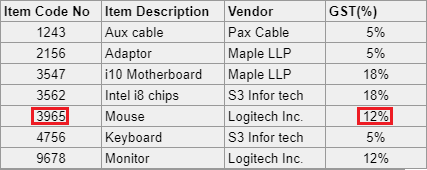
Datatable
Since in this case the extracted data and the GST value do not match, the validation fails. (Based on the Action on Fail value, the extracted data still gets retained.)
Note:
-
Use this rule to validate whether extracted cell data matches values in a datatable.
-
The near match threshold allows for minor discrepancies in the values.
-
Customize the Action on Fail parameter to determine how the validation rule handles data that does not meet the validation criteria.
Description: The "Validate US Country Address" validation rule checks whether the extracted data is in a valid address format that conforms to the standards of a US address. This validation ensures that the extracted data resembles a typical US address structure.
Rule details
Ontology screen name: Check if the value contains valid USA address, else perform action on fail
Programmatic name: ValidateUSAddress
|
PARAMETER NAME |
PARAMETER TYPE |
PARAMETER DESCRIPTION |
|---|---|---|
|
Action on Fail |
String |
Indicates the action to be taken in case the validation check fails. Available options are Discard, Discard and Continue, and Retain. By default, the Discard and Continue option is selected, change it as per your requirement. |
Note:
The address will be considered for 3 lines from above the pincode. The total address line would be 4 lines.
Example: 1
Consider that the extracted data is representing an address as shown below.
MITSUI & CO (USA) INC
ATTENTION: THE ACCOUNTS PAYABLE MANAGER
350 S. GRAND AVENUE, STE 3300
LOS ANGELES CA 90071
The data will pass the validation check as it is in a valid US address format.
Example: 2
Consider that the extracted data is representing a address.
SUZUKI INDUSTRIAL ESTATE
LOS ANGELES CA 90071
The validation check will fail as the data is not in a valid US address format. (Based on the Action on Fail value, the extracted data will either get discarded or retained.)
Note:
-
This rule checks whether the extracted data resembles a valid US address format and does not verify the actual existence of the address.
-
Use this rule to ensure that the extracted addresses are in the correct US address format. Customize the Action on Fail parameter to determine how the validation rule handles data that does not meet the validation criteria.
Description: The "Validate UK Phone Number" validation rule checks whether the extracted data is in a valid UK telephone number format. This validation ensures that the extracted data resembles a typical UK telephone number structure.
Rule details
Ontology screen name: Check if the value contains a UK phone number pattern, else perform action on fail
Programmatic name: IsValidUKTelephoneNumber
|
PARAMETER NAME |
PARAMETER TYPE |
PARAMETER DESCRIPTION |
|---|---|---|
|
Action on Fail |
String |
Indicates the action to be taken in case the validation check fails. Available options are Discard, Discard and Continue, and Retain. By default, the Discard and Continue option is selected, change it as per your requirement. |
Example: 1
Consider that the extracted data is (+44 )7911 123456 representing a phone number. The data will pass the validation check as it is in a valid US phone number format.
Example: 2
Consider that the extracted value is (+91) 022 3645 9384 representing a phone number. The validation check will fail as the data is not in a valid US phone number format. (Based on the Action on Fail value, the extracted data will either get discarded or retained.)
Note:
-
This rule checks whether the extracted data resembles a valid UK telephone number format and does not verify the actual existence of the phone number.
-
Use this rule to ensure that the extracted phone numbers are in the correct UK phone number format. Customize the Action on Fail parameter to determine how the validation rule handles data that does not meet the validation criteria.
Description: The "Validate US Phone Number" validation rule checks whether the extracted data is in a valid US telephone number format. This validation ensures that the extracted data follows the typical structure of a US phone number.
Rule details
Ontology screen name: Check if the value contains a US phone number pattern, else perform action on fail
Programmatic name: IsValidUSTelephoneNumber
|
PARAMETER NAME |
PARAMETER TYPE |
PARAMETER DESCRIPTION |
|---|---|---|
|
Action on Fail |
String |
Indicates the action to be taken in case the validation check fails. Available options are Discard, Discard and Continue, and Retain. By default, the Discard and Continue option is selected, change it as per your requirement. |
Example: 1
Consider that the extracted data is (415) 555 1234 representing a phone number. The data will pass the validation check as it is in a valid US phone number format.
Example: 2
Consider that the extracted value is (91) 022 1234 4321 representing a phone number. The validation check will fail as the data is not in a valid US phone number format. (Based on the Action on Fail value, the extracted data will either get discarded or retained.)
Note:
-
This rule checks whether the extracted data resembles a valid US telephone number format and does not verify the actual existence of the phone number.
-
Use this rule to ensure that the extracted phone numbers are in the correct US phone number format. Customize the Action on Fail parameter to determine how the validation rule handles data that does not meet the validation criteria.
Description: The "Validate Value with Custom Pattern" validation rule checks whether the extracted data matches a custom regular expression pattern provided by the user. This validation is useful when you need to validate the extracted data against a specific format or pattern that cannot be easily validated using standard validation rules.
Rule details
Ontology screen name: If the value matches with custom pattern else perform action on fail
Programmatic name: ValidateRegex
|
PARAMETER NAME |
PARAMETER TYPE |
PARAMETER DESCRIPTION |
|---|---|---|
|
Custom Pattern |
String |
Custom regular expression that is to be used to extract data. |
|
Action on Fail |
String |
Indicates the action to be taken in case the validation check fails. Available options are Discard, Discard and Continue, and Retain. By default, the Discard and Continue option is selected, change it as per your requirement. |
Example
Consider that the extracted data is to be validated with the custom pattern set. The extracted data can be passed to the validation rule, which can then validate the same. (In case the validation fails, the extracted data can be discarded or retained based on the value of the Action on Fail property.)
Note:
-
Regular expressions allow you to define complex patterns for data validation.
-
Use this rule when you need to validate the extracted data against a specific pattern that cannot be validated using other predefined rules.
-
The Custom Pattern parameter should be written in a valid regular expression syntax.
-
Depending on whether the data matches the custom pattern or not, you can decide whether to discard, retain, or take other actions on the data using the Action on Fail parameter.
Description: The "Validate Web Address" validation rule checks whether the extracted data follows the standard format of a web address (URL). This validation is used to ensure that the extracted data represents a valid web URL.
Rule details
Ontology screen name: Check if the value contains a web URL pattern, else perform action on fail
Programmatic name: IsValidWebSite
|
PARAMETER NAME |
PARAMETER TYPE |
PARAMETER DESCRIPTION |
|---|---|---|
|
Action on Fail |
String |
Indicates the action to be taken in case the validation check fails. Available options are Discard, Discard and Continue, and Retain. By default, the Discard and Continue option is selected, change it as per your requirement. |
Example: 1
Consider that the extraction data is www.datamatics.com representing a web address. The data will pass the validation check as it is in a valid format.
Example: 2
Consider that the extraction data is www.datamatics.india representing a web address. The validation check will fail when applied on the data as it is in an invalid format.
Note:
-
Use this rule when you want to ensure that the extracted data represents valid web addresses (URLs).
-
The rule does not verify whether the extracted web address is an existing or reachable URL; it only checks if the format is correct.
-
Depending on whether the data follows a valid web address format or not, you can decide whether to discard, retain, or take other actions on the data using the Action on Fail parameter.
-
The rule considers various URL formats, including those starting with "http://," "https://," and "www."
Description: The "Validate Zip Code" validation rule is used to validate whether the extracted data follows a valid zip code format based on the specified country code. This rule does not verify whether the extracted data is a valid zip code number; it only validates the format based on the provided country code.
Rule details
Ontology screen name: Check for zip code pattern based on country code value, else perform action on fail
Programmatic name: IsValidZipCode
|
PARAMETER NAME |
PARAMETER TYPE |
PARAMETER DESCRIPTION |
|---|---|---|
|
Value |
String |
Country code representing the country whose zip code format is to be referenced while validating the extracted data. |
|
Action on Fail |
String |
Indicates the action to be taken in case the validation check fails. Available options are Discard, Discard and Continue, and Retain. By default, the Discard and Continue option is selected, change it as per your requirement. |
Example
Consider the extracted data is 400001 representing a zip code. Based on the parameter values below, it can be validated whether the data is in a valid Indian zip code format. In case the validation will pass as the extracted value represents a valid Indian zip code.
|
PARAMETER NAME |
PARAMETER VALUE |
|---|---|
|
Value |
IN |
|
Action on Fail |
Discard |
Note:
-
Use this rule when you want to ensure that the extracted data represents zip codes in the correct format for a specific country.
-
The rule validates the format of the extracted data against the zip code format associated with the provided country code.
-
Depending on whether the extracted data follows a valid zip code format or not, you can decide whether to discard, retain, or take other actions on the data using the Action on Fail parameter.
-
The rule does not verify the actual validity of the zip code itself; it only checks whether the format is correct for the specified country.
Description:The "Validate with Knowledge Master" rule enables you to validate an extracted value by comparing it with a reference value or condition. If the validation condition is met, the rule can further check if the extracted value matches a threshold percentage.
Rule details
Ontology screen name: Validate with Knowledge Master
Programmatic name: ValidateWithKnowledgeMaster
|
PARAMETER NAME |
PARAMETER TYPE |
PARAMETER DESCRIPTION |
|---|---|---|
|
Value |
Reference |
A field or a static value with which the extracted data is to be compared. |
|
Percentage |
Numeric |
Indicates the percentage of value that is to be looked up. Available options are 100% and NA. |
|
Action on Fail |
String |
Indicates the action to be taken in case the validation check fails. Available options are Discard, Discard and Continue, and Retain. |
Example
Consider that the extracted value represents the name of a vendor, and it is to be found whether the vendor name is in the empanelled list of vendors or not. The name of empanelled vendors and their details are available in a datatable referred to by @EmpanelledVendors anchor field.
Based on the parameter values in the given table, the validation rule can check and validate whether the vendor name (represented by the extracted data) is available in the datatable (referred to by @EmpanelledVendors). (In case the name is not found, the extracted value will get discarded.)
|
PARAMETER NAME |
PARAMETER VALUE |
|---|---|
|
Value |
@EmpanelledVendors |
|
Percentage |
NA |
|
Action on Fail |
Discard |
Note
-
This rule is useful for ensuring data accuracy and quality by validating extracted information against predefined standards or conditions.
-
The rule allows you to implement data quality control and prevent incorrect or irrelevant data from being retained.
-
The ability to discard or retain data based on the validation outcome provides flexibility in managing data extraction results.
Custom validations
Using the Custom tab, user can define rules that can be applied as customised validations.
For detailed information about the custom rules, see Expression language syntax topic.
Follow the steps below to add a rule:
-
To create a new rule, click the +Add New Rule button.
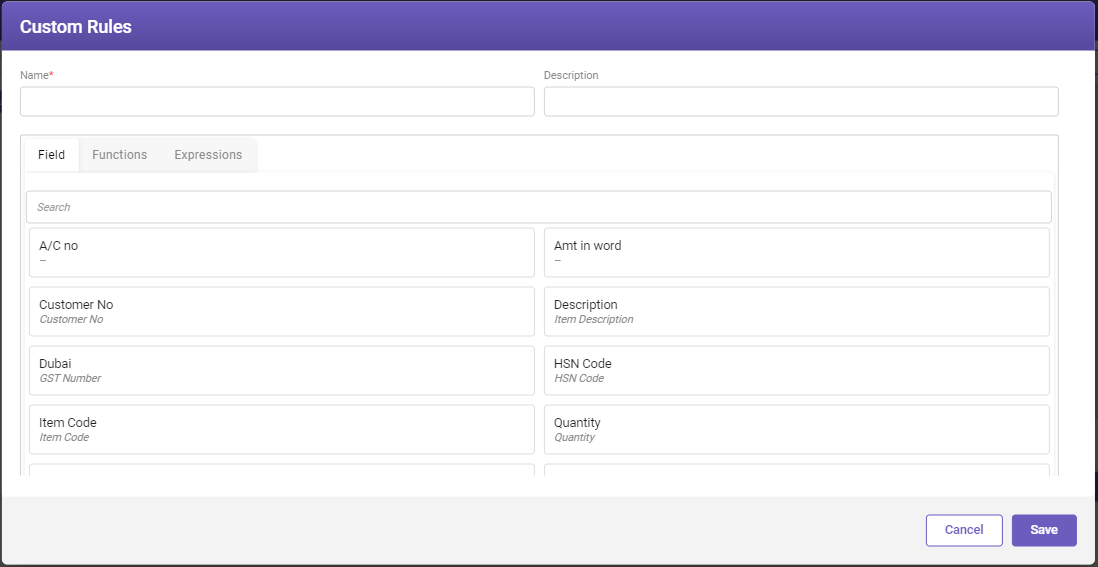
-
Specify the field name in the Name field and related description in the Description field.
-
Based on your requirement, you can select either a field, function or an expression (or some combination of the same) from the Field, Functions, and Expressions tabs respectively.
-
Use operators from the Operators panel to arrange the selected fields, functions, and expressions as per the desired logic.
-
Use the options from the Action on Fail drop-down to take the action in case the validation check fails. The available options are Discard, Discard and Continue, and Retain.
The description for Field, Functions, and Expressions tab is given below.
-
Field: Displays the available fields used to create a customized validation rule. Click on the required field available in the Field tab to include a field.
-
Functions: Displays the available functions used to create a customized validation rule. Click on the required function available in the Functions tab to include a function (rule).
-
Expressions: Displays the available expressions used to create a customized validation rule. Click on the required expression available in the Expressions tab to include an expression in the rule.
-
Note:
The rule based on your selection will appear in the Builder panel.
-
Once you have formed the required rule, click Save. The rule gets added under Customs tab.
Data cleanup rules
Under the Data Clean-up tab, the default data clean-up rules that can be applied to edit the validated data are displayed. (For example, removing the leading and trailing empty spaces.) To add a data clean-up rule, click on +Add New Rules.
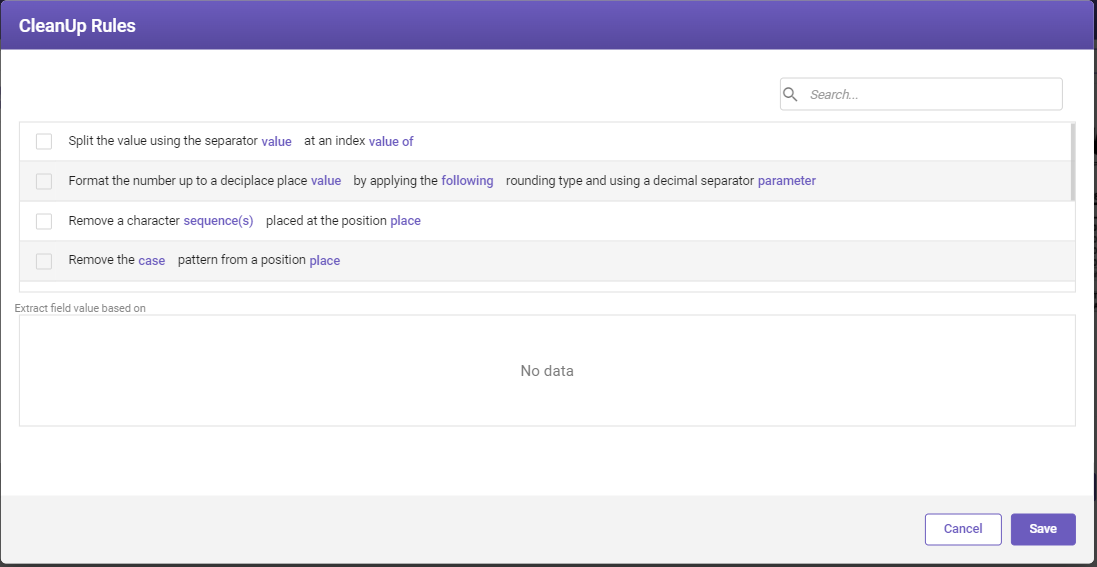
To prevent a data clean-up rule from getting applied, user can clear the checkbox next to the required data clean-up rule under the Data Clean-up tab. All the selected data clean-up rules are displayed under the All tab.)
Below is the list of the available data cleanup rules with their explanation.
Description: The "Format the Numeric Value" rule allows you to adjust the precision of a numeric value by rounding it to a specified number of decimal places. It also provides the option to choose whether to round up or round down the decimal value. Additionally, you can choose a decimal separator to be used in the formatted numeric value.
Rule details
Ontology screen name: Format the number up to a decimal place value by applying the following rounding type and using a decimal separator parameter
Programmatic name: FormatNumericValue
|
PARAMETER NAME |
PARAMETER TYPE |
PARAMETER DESCRIPTION |
|---|---|---|
|
Value |
String |
Number of digits (to the right of the decimal) up to which the number is to be rounded. Permitted value is an integer starting from 0 onwards. |
|
Following |
Selection List |
Option to roundup or rounddown the decimal value. |
|
Parameter |
String |
Indicates the decimal separator in the given numeric value. Permitted values are comma and period. Note Both the values can be given simultaneously. |
Example
Consider that for some calculation, you need to round-down the extracted rate of interest value present in a bank loan form. Suppose the applied rate of interest is mentioned as 8,25 percent. Based on the parameter value set in the below table, the extracted value will become 8,2.
|
PARAMETER NAME |
PARAMETER VALUE |
|---|---|
|
Value |
1 |
|
Following |
Rounddown |
|
Parameter |
, |
Note:
-
In case the extracted value would have been, say, 8,23 percent, and the Rounding Type would have been set to Roundup, then based on the above parameters, the extracted value would have become 8,3.
-
Ensure that the parameter values are accurately set based on your formatting preferences.
-
Verify that the rule behaves as expected when applied to various numeric values and rounding scenarios.
Description: The "Get the Data Using a Separator" rule is designed to extract a specific value from a delimited data string. Delimited data is often used to store information in fields separated by a common character. This rule enables you to choose a delimiter and specify the index position of the field you want to extract.
Rule details
Ontology screen name: Split the value using the separator value at an index value of from the position
Programmatic name: GetValueUsingSeparator
|
PARAMETER NAME |
PARAMETER TYPE |
PARAMETER DESCRIPTION |
|---|---|---|
|
Value |
String |
Delimiter based on which the values are to be extracted. |
|
Value Of |
Numeric |
Index position of the data field in the delimited data. Permitted value-range is 0 to 9999, where 0 represents the first data field. |
|
Position |
Selection list |
Indicates the position from which the given words are to be removed. Available options are End and Start |
Example
In a given form, the telephone number of the person is prefixed with ISD and STD codes (for example, 91-044-25347813). Using This rule, the telephone number can be fetched based on the following parameter values .
|
PARAMETER NAME |
PARAMETER VALUE |
|---|---|
|
Value |
- |
|
Value Of |
2 |
|
Position |
End |
Note:
-
Ensure that the delimiter and index values are set correctly to match the structure of your delimited data.
-
Verify the rule's behavior with various input scenarios to ensure accurate extraction.
Description: The "Remove Characters" rule allows you to remove specific characters or sequences of characters from an extracted value. This is particularly useful when you want to clean up extracted data by removing unwanted characters, such as commas, spaces, or certain patterns.
Rule details
Ontology screen name: Remove a character sequence(s) placed at the position place
Programmatic name: RemoveCharacters
|
PARAMETER NAME |
PARAMETER TYPE |
PARAMETER DESCRIPTION |
|---|---|---|
|
Sequence(s) |
String |
Single character or a set of comma separated values that are to be removed from the extracted value. Note
|
|
Place |
Selection list |
Indicates the position from which the given character is to removed. Available options are Start, End, and Anywhere. |
Example
In an income declaration form, the final amount in figures includes commas after every three digits. The amount is to be fetched in a way that there are no commas. This can be done by passing the following parameter values to the rule.
|
PARAMETER NAME |
PARAMETER VALUE |
|---|---|
|
Sequence(s) |
, |
|
Place |
Anywhere |
Multiple data clean-up rules
If a user wants to remove two characters from a line, one from the beginning of the line and other present at the end of the line. In such case, the user is allowed to set two rules one to remove the character from the start and other rule to remove the character from the end.
Note:
-
Ensure that the sequence(s) and the place parameters are set correctly to target the characters you want to remove and the position from which they should be removed.
-
Depending on your data, you can use this rule to remove unwanted characters, spaces, specific patterns, and more.
-
The rule should be placed in the extraction sequence accordingly, so it receives the extracted data as input.
Description: The "Remove Character Pattern" rule enables you to remove characters from an extracted value based on a specified pattern. This is helpful when you need to clean up data by eliminating specific types of characters, such as removing alphabets, numbers, or certain letter cases from the extracted value.
Rule details
Ontology screen name: Remove the case pattern from a position place
Programmatic name: RemoveCharacterPattern
|
PARAMETER NAME |
PARAMETER VALUE |
PARAMETER NAME |
|---|---|---|
|
Case |
Selection list |
Pattern to identify the characters that are to be removed. Available options are Alphabets, Lowercase, Numbers, and Uppercase. |
|
Place |
String |
Indicates the position in the extracted data from where the characters are to be removed. Available options are Anywhere, End, and Start. |
Example
Consider that the extracted Purchase Order (P. O.) number includes some garbled values at the end. This garbled values can be removed by passing the following parameter values to the rule.
|
PARAMETER NAME |
PARAMETER VALUE |
|---|---|
|
Case |
Alphabets |
|
Place |
End |
Note:
-
Ensure that you select the appropriate case pattern and position where you want the character removal to occur.
-
The rule should be placed in the extraction sequence accordingly, so it receives the extracted data as input.
Description: The "Replace Characters" rule allows you to replace specific sub-strings or character sequences within an extracted value with new sub-strings or character sequences. This is useful for cleaning up data or transforming it to meet specific formatting requirements.
Rule details
Ontology screen name: Replace a character sequence(s) with a new character sequence(s) value
Programmatic name: ReplaceCharWithNewChar
|
PARAMETER NAME |
PARAMETER TYPE |
PARAMETER DESCRIPTION |
|---|---|---|
|
Sequence(s) |
String |
Sub-string that is to be replaced. |
|
Sequence(s) Value |
String |
Replacement sub-string. |
Note:
The rule should be placed appropriately in an extraction sequence so that it receives the required extracted data as an input.
Example
A value extracted from a given document reads as $100,670,100. The dollar sign is to be replaced with USD. This can be done by passing the following parameter values to the rule.
|
PARAMETER NAME |
PARAMETER VALUE |
|---|---|
|
Sequence(s) |
$ |
|
Sequence(s) Value |
USD |
Note:
-
Multiple character sequences (separated by comma) can be replaced. For space, multi spaces, and comma, characters such as @@space, @@multispace, @@comma can be entered respectively.
-
The previous character sequence can be replaced. For space, no space, and comma, characters such as @@space, @@nospace, @@comma can be entered respectively.
Description: The "Remove the Words" rule allows you to remove specific words or information from an extracted value based on the position of a keyword. This is useful for eliminating unnecessary details or content that may follow a certain keyword within the extracted value.
Rule details
Ontology screen name: Remove the words from position of the keyword value
Programmatic name: EliminateCellValues
|
PARAMETER NAME |
PARAMETER TYPE |
PARAMETER DESCRIPTION |
|---|---|---|
|
Position |
Selection list |
Indicates the position from which the given words are to be removed. Available options are After and Before. |
|
Value |
String |
Keyword to identify the words that are to be removed. |
Example
Consider that you want to only fetch the data mentioned above the Country of Origin value (see below image) and want to remove the information mentioned after it.
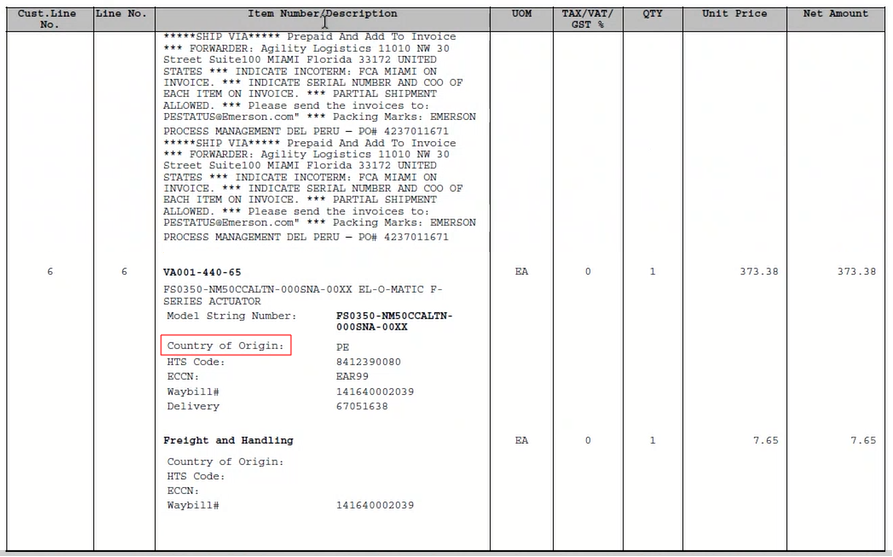
You can set the parameter values as shown below to fetch the required data.
|
PARAMETER NAME |
PARAMETER VALUE |
|---|---|
|
Position |
After |
|
Value |
Country of Origin |
Note
Ensure that you select the correct keyword and position for removing words. The rule should be placed appropriately in the extraction sequence so that it receives the extracted data as input.
Description: The "Remove Duplicate Values" rule identifies duplicate values within a dataset and removes them, leaving only unique instances of each value. This rule is particularly useful when you have extracted information that may include repetitions of the same data, and you want to streamline the dataset by removing such redundancies.
Rule details
Ontology screen name: Remove duplicate values
Programmatic name: RemoveDuplicateValue
Example
In a given invoice document, the final value is available as INR 5,000 which is repeated twice. Using this rule, the duplicate value can be removed.
Note
-
This rule is particularly helpful when dealing with datasets that contain redundant or repeated information, as it helps to clean up the data and improve data quality.
-
The rule should be placed appropriately in the extraction sequence to ensure that it receives the extracted data as input and can effectively remove duplicate values.
Description: The "Remove the Table Row" rule allows you to remove entire rows from a table when a specified field within that row is empty. This rule helps you clean up tabular data by removing rows that do not have the required information in a particular field.
Rule details
Ontology screen name: Remove table row for empty value from position
Programmatic name: RemoveRowByEmptyField
|
PARAMETER NAME |
PARAMETER TYPE |
PARAMETER DESCRIPTION |
|---|---|---|
|
Value |
String |
Value to be assigned. |
|
Position |
Selection list |
Indicates the position from which the given row is to removed. Available options are Anywhere, End, and Start. |
Example
Consider that you want to remove the table row which does not have the price mentioned (see below image).
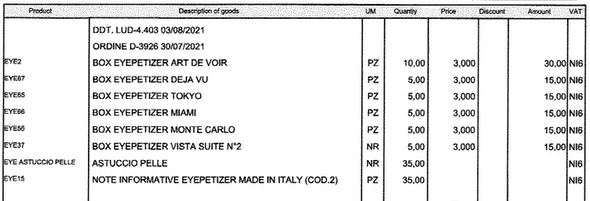
You can set the parameter values as shown below to remove the required data
|
PARAMETER NAME |
PARAMETER VALUE |
|---|---|
|
Value |
@Price |
|
Position |
Anywhere |
Note
-
This rule is particularly useful when working with tables extracted from documents and you want to filter out rows that lack certain information.
-
The rule should be placed in the data cleanup sequence after the table extraction to ensure that it operates on the correct dataset.
Description: The "Filter by Value Index" rule works in conjunction with the "Get the Checkbox Value" rule. First, you need to use the "Get the Checkbox Value" rule to extract all the labels in the required checkbox group. Then, you use the "Filter by Value Index" rule to extract a specific label based on its position within the checkbox group.
Rule details
Ontology screen name: Filter with value index using the value and by sorting in direction
Programmatic name: GetValueByIndex
Note
Use Get the Checkbox Value rule before Filter by Value Index rule to extract all the labels in the required checkbox group. This data will then be used by Filter by Value Index rule to extract the required label.
|
PARAMETER NAME |
PARAMETER TYPE |
PARAMETER DESCRIPTION |
|---|---|---|
|
The Value |
Numeric |
Index position of the required checkbox against which data is to be fetched. |
|
Direction |
String |
Indicates the order of direction in which the values will be filtered. Available options are: Ascending, Descending, and None. |
Example
Consider that you want to find the tourist destination selected by a client in an itinerary form (as shown below).
You can set the parameter values as shown below to fetch the required data.
|
PARAMETER NAME |
PARAMETER VALUE |
|---|---|
|
The Value |
1 |
|
Direction |
Ascending |
Note
-
This rule is especially useful when working with checkbox groups and you need to extract specific labels based on their positions.
-
The rule assumes that you have already used the "Get the Checkbox Value" rule to extract all the labels from the checkbox group.
-
The "Filter by Value Index" rule ensures that you can precisely extract the label associated with a particular checkbox based on its index.
Description: The "Remove All Values Except the Parameter" rule allows you to narrow down your data extraction to a specific parameter value. In other words, you can filter out all data except the one that matches the selected parameter value. This can be particularly useful when dealing with datasets that contain different types of information, and you want to extract only a specific type of information.
Rule details
Ontology screen name: Remove all values except the parameter
Programmatic name: GetDateTimeFromWord
|
PARAMETER NAME |
PARAMETER TYPE |
PARAMETER DESCRIPTION |
|---|---|---|
|
Parameter |
Selection list |
Indicates the values whose information is to be retrieved. Available options are: Date, and Time. |
Example
Consider that you want to retrieve the date from the time sheet (as shown below).
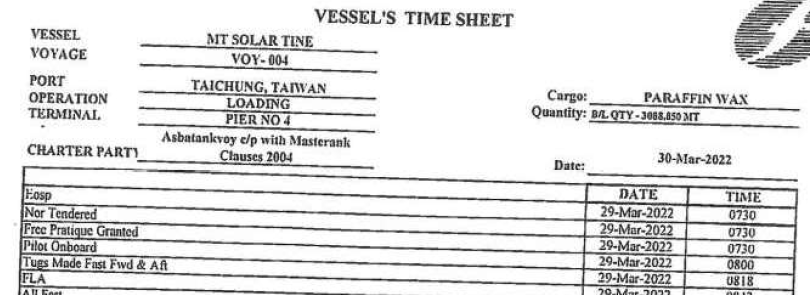
You can set the parameter values as shown below to fetch the required data.
|
PARAMETER NAME |
PARAMETER VALUE |
|---|---|
|
Parameter |
Date |
Note
-
This rule is especially useful when you have a dataset with multiple types of information and you want to focus on one specific type.
-
The rule allows you to streamline your data extraction process by excluding unwanted information.
-
The "Remove All Values Except the Parameter" rule ensures that you obtain a cleaner and more targeted dataset by extracting only the relevant information.
Description: The "Replace MI Value by OCR Value" rule allows you to replace a value that has been extracted using one method (e.g., form recognizer) with a value obtained from an OCR engine. This can be useful to correct inaccuracies or errors in the extracted data by using OCR-recognized values.
Rule details
Ontology screen name: Replace MI value by OCR value
Programmatic name: ExtractDataByMlCoordinate
Example
In a given document, when the above rule is assigned, if the value is extracted using the form recognizer, then the value is overwritten with the values from the OCR engine.
Note
-
The "Replace MI Value by OCR Value" rule can be used to correct and improve the quality of extracted data by leveraging OCR engine results.
-
It is particularly valuable when you have confidence in the OCR engine's accuracy and want to use its recognized values to replace values extracted by other means.
-
This rule aids in achieving data consistency and precision by utilizing reliable OCR-recognized content.
Description: The "Cleanup data and retain line number from position" rule allows users to selectively retain specific lines from the extracted data. This rule is particularly useful for refining and focusing on essential information.
Rule details
Ontology screen name: Cleanup data and retain line number from position
|
PARAMETER NAME |
PARAMETER TYPE |
PARAMETER DESCRIPTION |
|---|---|---|
|
Number |
Numeric |
Indicates the line numbers to be retained. Note
|
|
Position |
Selection list |
Indicates the position from which the given line numbers to be retained. Available options are Top, and Bottom. |
Example
In a given document, consider the following extracted data and you want to only retain lines 2 to 4.
-
Product: Laptop
-
Brand: XYZ
-
Price: $1500
-
Warranty: 2 years
-
Color: Silver
You can set the parameter values as shown below to retain the required lines from the extracted data.
|
PARAMETER NAME |
PARAMETER VALUE |
|---|---|
|
Number |
2-4 |
|
Position |
Top |
Viewing all rules
Using the All tab, you can view the order in which the selected extractions, validations, and custom rules will get applied. To remove or make any changes in the rule parameter values, you can go to the required tab and make the required changes. After review, click Save to save and apply the rules to the given field.
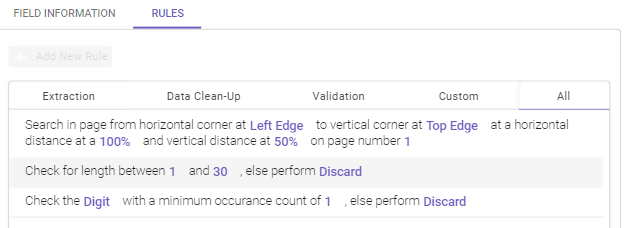
NEXT
Now that you know how to define rules, let's set up input/output locations.
Useful links
Integrated documents processing